
When handling documents with confidential or sensitive data, encryption is often used to protect documents from unauthorized access. When documents are encrypted, no matter where they are stored and sent to, only authorized users can open your encrypted documents to view or edit the contents.
This document will consist of 4 parts that illustrate how to create a Shared Library in OneDrive and share folders or files with external users.
1. Protect documents and files with Azure Information Protection
2. Create shared library in onedrive
3. Create Folder and Add external user's email for SharePoint access
4. How external users access the confidential documents
Part 1: Protect documents and files with Azure Information Protection
Please refer to the URL below for guidance on how to use AIP to protect documents so that only authorized persons can open and read them
- https://itso.hkust.edu.hk/cyber-security/aip
Part 2: Create a Shared Library for Document Sharing
Please refer to the URL below for guidance on how to create a Shared Library
- https://itso.hkust.edu.hk/services/general-it-services/communication-collaboration/shared-library
Part 3: Create Folder and Add external user's email for SharePoint access
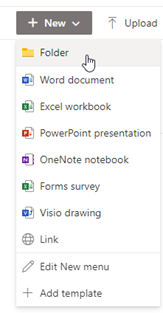
3.1 Click New > Folder
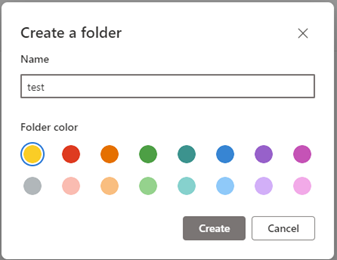
3.2 Type folder name
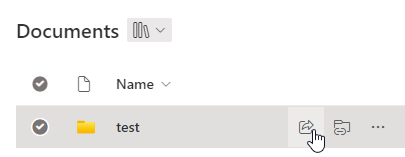
3.3 Click Share icon
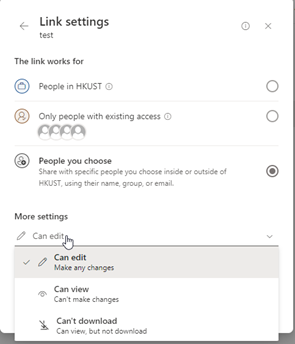
3.4 Type Recipient email address and click Setting icon
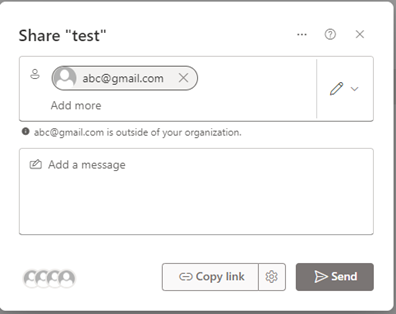
3.5 Select Permission: Can edit, Can view, Can’t download
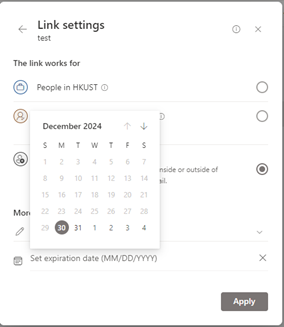
3.6 Set expiration date
3.7 You can upload the confidential documents under the shared folder
Part 4: How external users access the confidential documents
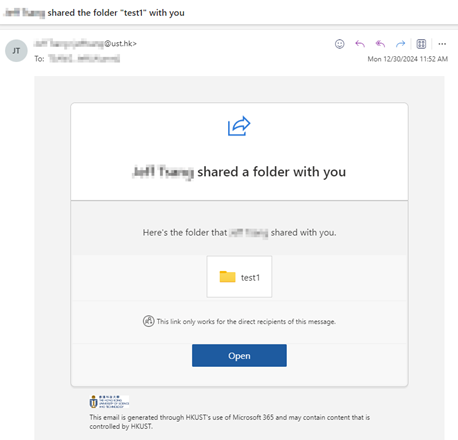
4.1 Target recipient will receive the notification email and click Open
4.2 Type Recipient’s email address
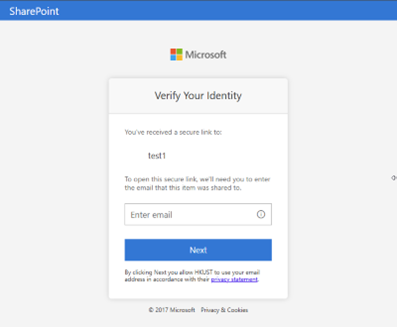
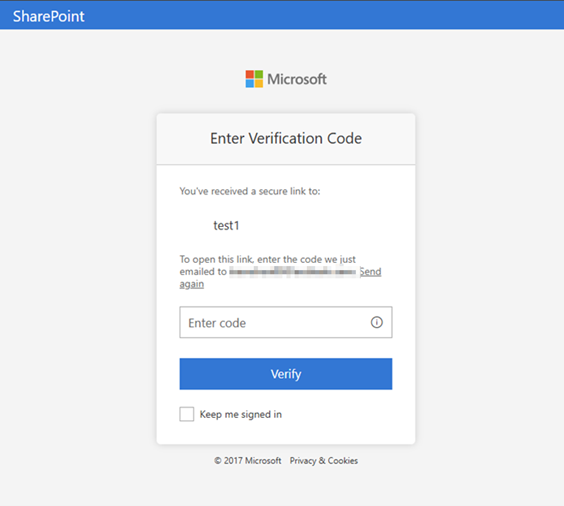
4.3 Check email, type the code and click verify
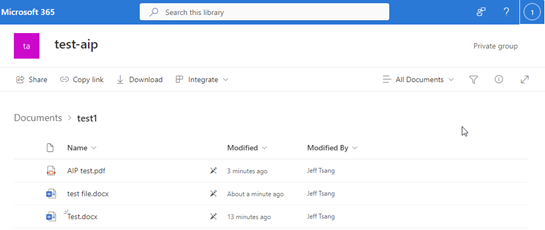
4.4 View the folder files
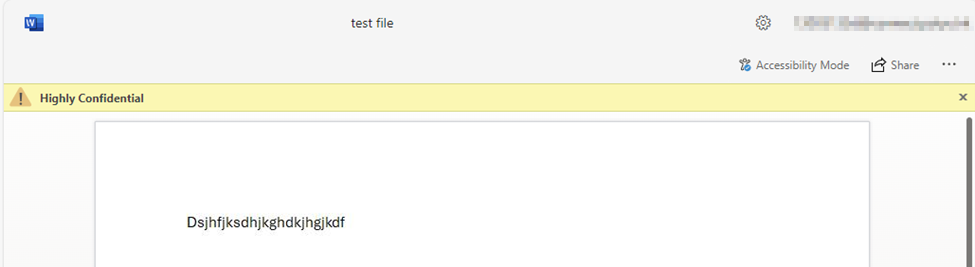
4.5 Can open the file with highly confidential label
More Information:
- How do I delete a OneDrive Shared Library?
- Acceptable Practices for Handling High Risk Data