
Virtual Barn Client Installation Guide
Microsoft Windows
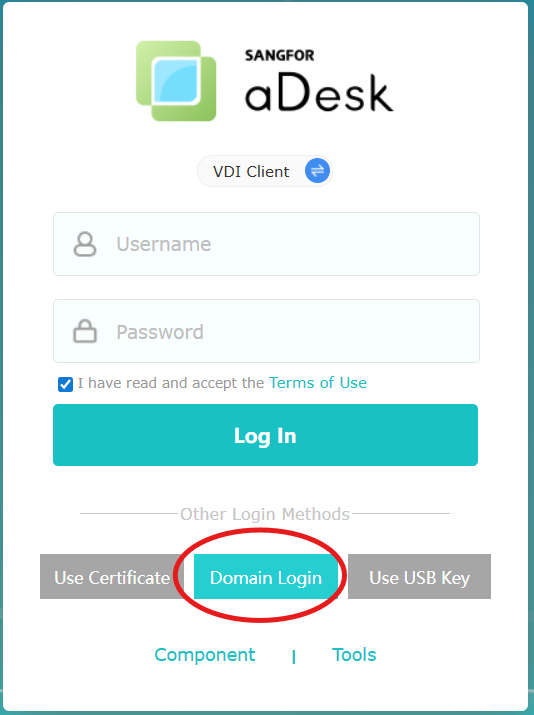
- Open a browser and go to https://workspace.ust.hk.
- Click Domain Login.
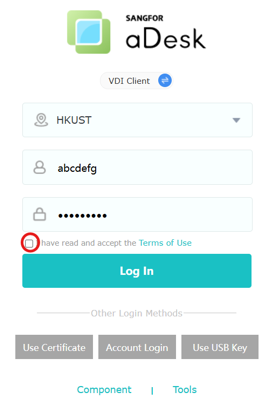
- Enter your HKUST Account and password. Tick "I have read and accept the Terms of Use".
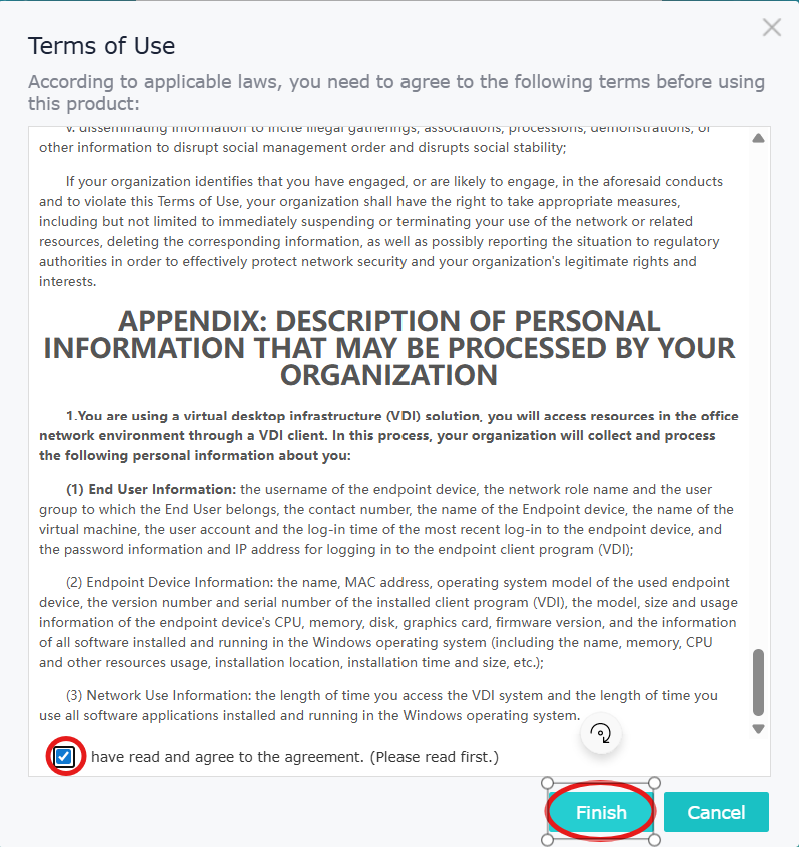
- Scroll down, tick "I have read and agree to the agreement", then click Finish. Finally, click Login.
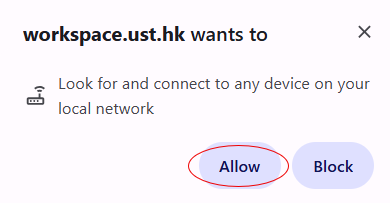
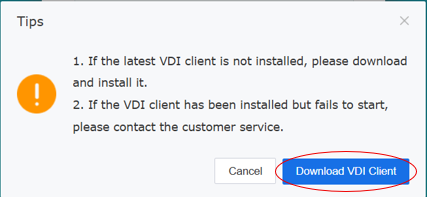
- When prompted, click Allow on the pop-up window, then click "Download VDI Client".
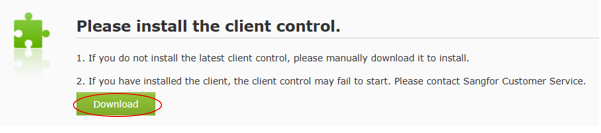
- Click Download and run the install.exe to install the Client Software.
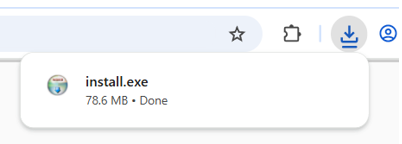
- After installation, open your browser again, return to https://workspace.ust.hk, and log in.
Apple Mac OS
- Open a browser and go to https://workspace.ust.hk.
- Click on the "Domain Login" button.
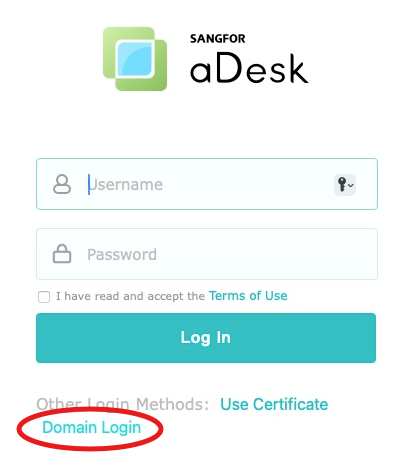
- Enter your HKUST Account and password.
- Tick "I have read and accept the Terms of User".
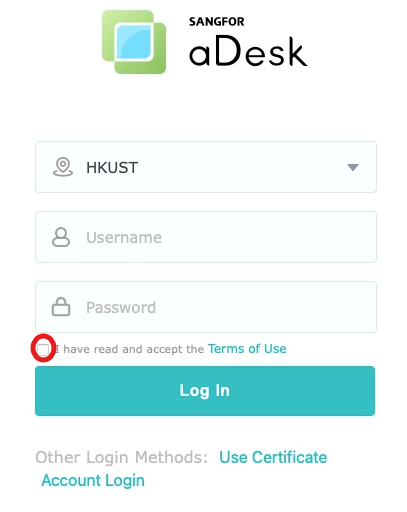
- Scroll down, tick "I have read and agree to the agreement", and then click "Finish". Finally, click "Login".
- Click "Download" and run SangforVDIClient.dmg to install the Client Software.

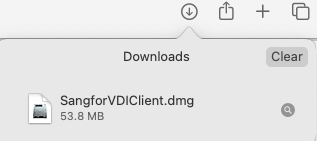
- After the VDI Client is installed, open a browser and go to "https://workspace.ust.hk" and log in again.
- Connect to the Virtual Barn - User Guide
Linux
- Open a browser and go to https://workspace.ust.hk.
- Choose your Linux OS and click "Download".
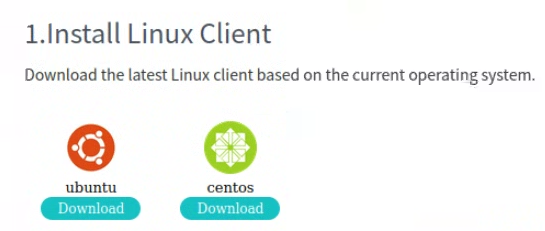
- Method 1: Double click to install the Debian package, enter the password in the pop-up dialog box and wait for installation completion.
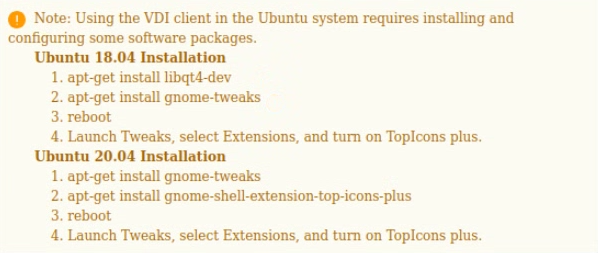
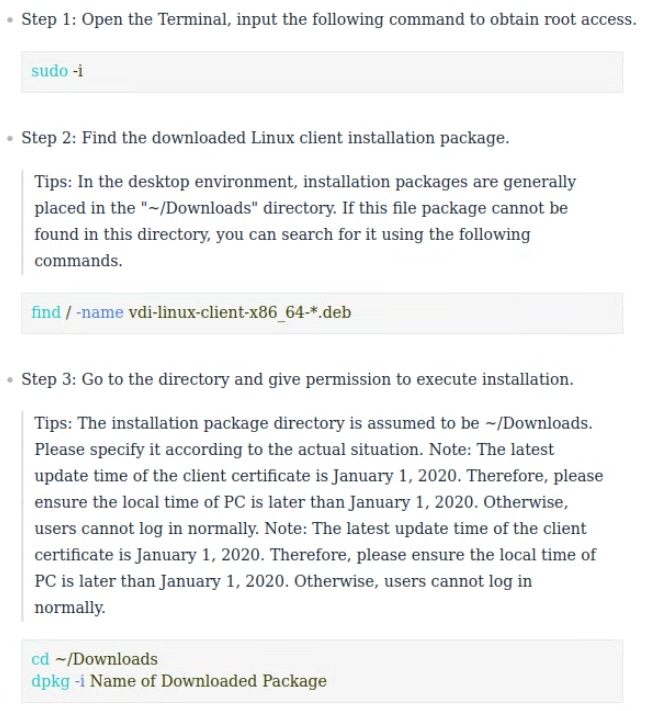
- Method 2: Command Line Installation.
Android
- Open the Google Play Store”.

- Search for "VDI Client" and tap "VDI Client sangfor".

- Tap INSTALL to install the application.
Apple iOS (iPhone/iPad)
- Open the “App Store”.
- Search for "VDI Client".
- Tap “INSTALL” to install the application.