The following are some introductory guidelines for getting started with Google Gemini Enterprise. For more example use case, please refer to official webpage https://docs.cloud.google.com/gemini/enterprise/docs/use-cases/example-use-cases
Gemini Enterprise assistant
Gemini Enterprise Access - Login to the system at https://gemini.ust.hk by using your HKUST account
Introduction
Authorize Connector (For Staff only)
Basic Use scenarios
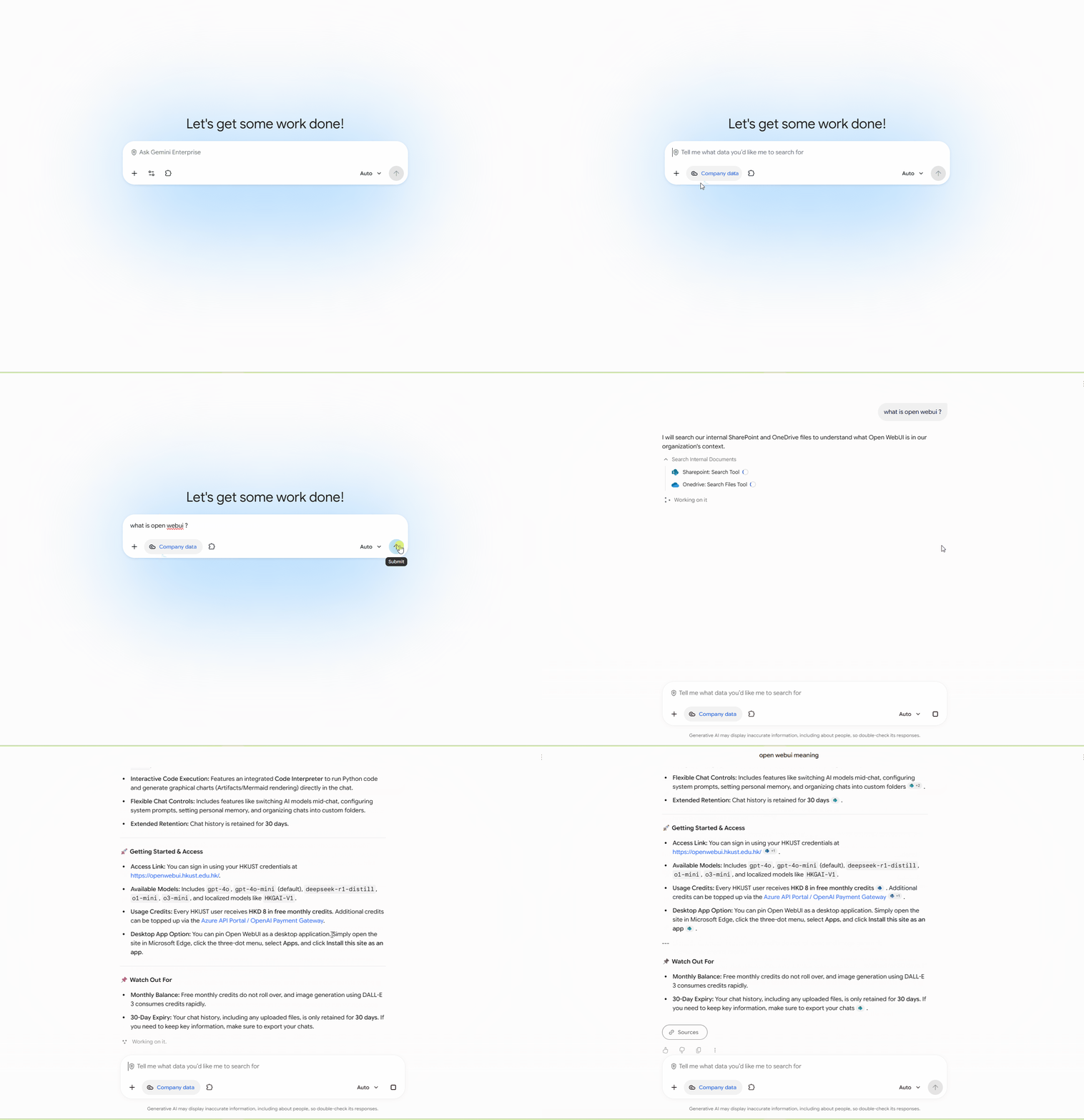
Search Organization Data with M365 Connector
Using Pre-built agent
-
Deep Research: automated research and reporting
-
Gemini Notebook: an AI-powered research and knowledge assistant
User Interface
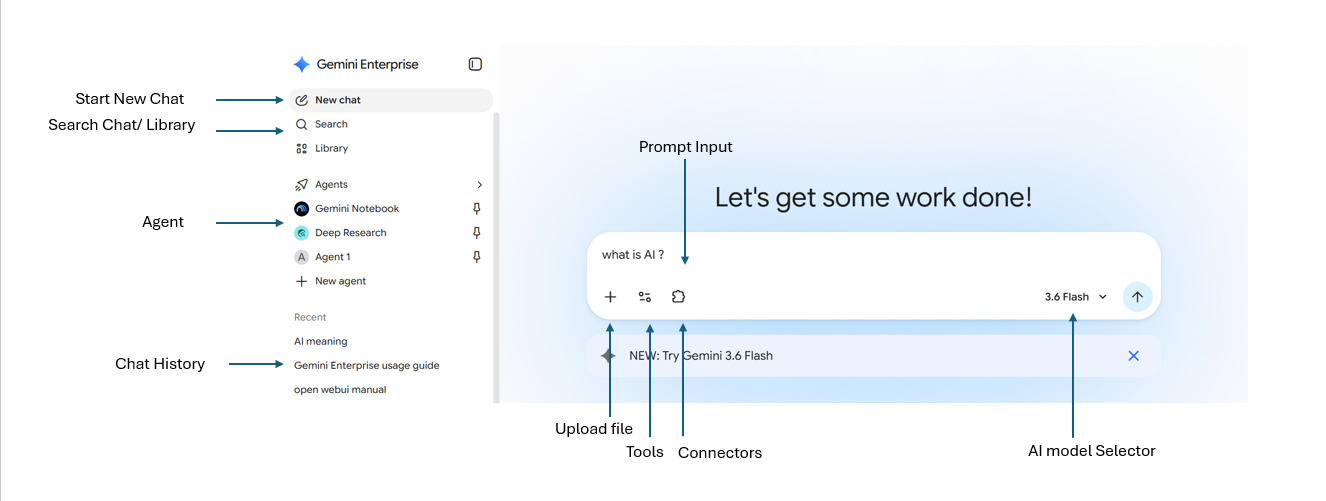
Upload File - Upload your local file/ One drive file for AI grounding
Tools - Select tools for the right task
Connector - Enable and Authorize connector for external data and tools here
AI Model Selector - default Auto selection or manually select a model for your task. Flash model for fast response while Pro model for complex reasoning task
Search Chat/ Library - Search chat history and library asset ( AI generated Image or Video)
Agent - Google out-of-the box agent and you self-created agent access here
Chat History Retention
Gemini Enterprise chat retention is 180 day. Chats are automatically deleted once they reach the retention limit, based on the original chat creation date, not the date of the most recent interaction. In other words, if a chat was created 180 days ago, it will be permanently deleted when it reaches the 180-day retention limit, even if additional messages have been exchanged recently. Once a chat is deleted, it cannot be recovered. User are always being encouraged to export the chat history for record. Refer to Export Chat History section for more detail.
Gemini Mobile App Access
1. Generate the Mobile QR code in Gemini Web App
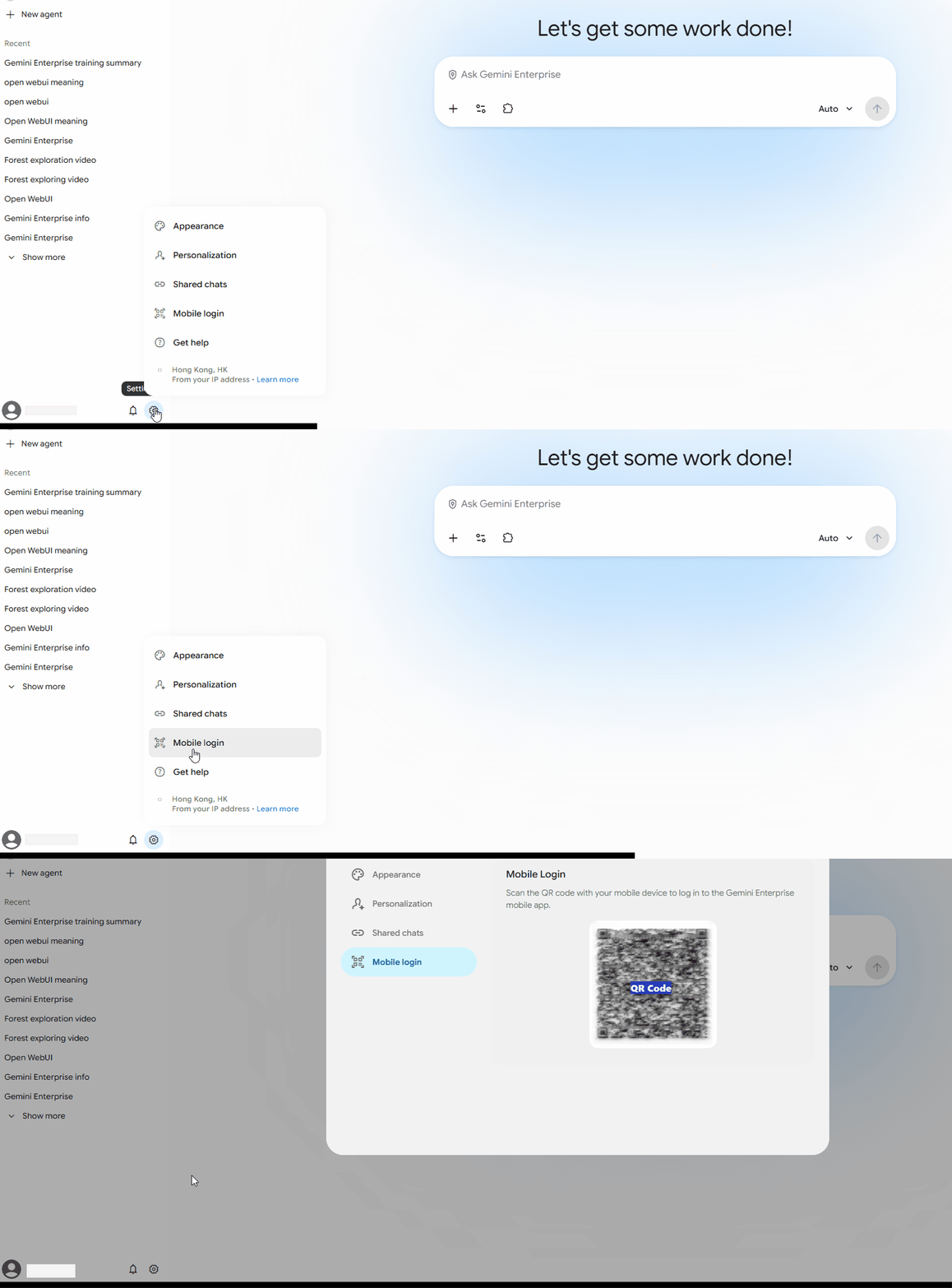
2. Download Gemini Enterprise App from App store of Android / iOS
3. Open the Gemini Enterprise App and scan the QR code to login
Authorize Connector (For Staff only)
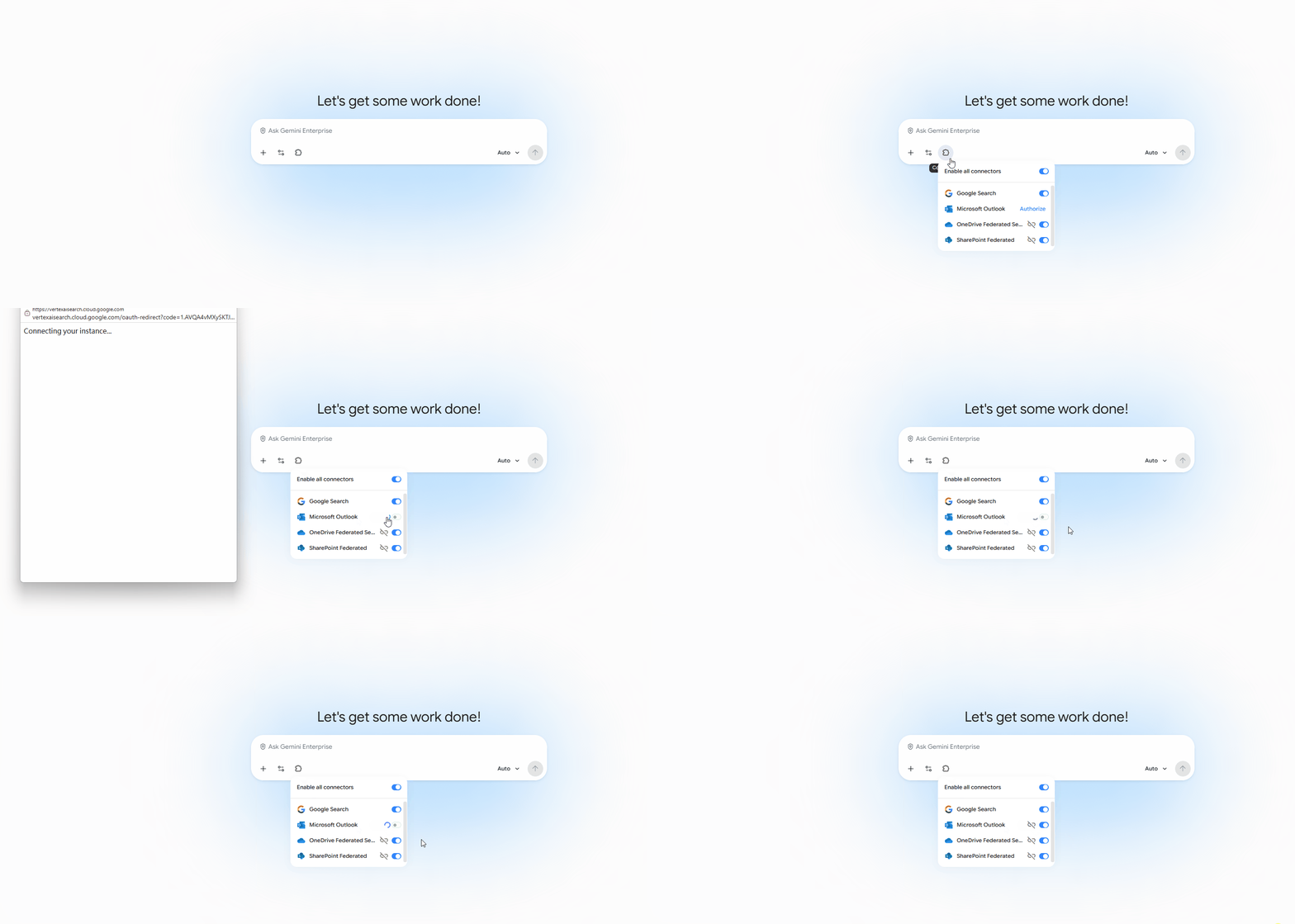
1. Select connector and authorize M365 Connectors which allows Gemini Enterprise to access your Outlook e-mail, One-Drive files and Sharepoint FIles
2. after clicking authorize, a pop-up windows would appear for provide credential to sign-in.
Remarks: If your browser only have single M365 account signed-in. The pop-up windows would appear few seconds and disappear in short.
For connector de-authorization, click the  to de-authorize
Scenarios Illustration
Search Organization Data with M365 Connector
Ask AI to leverage your M365 data to answer your questions. Connector authorization is prerequisite of the use case
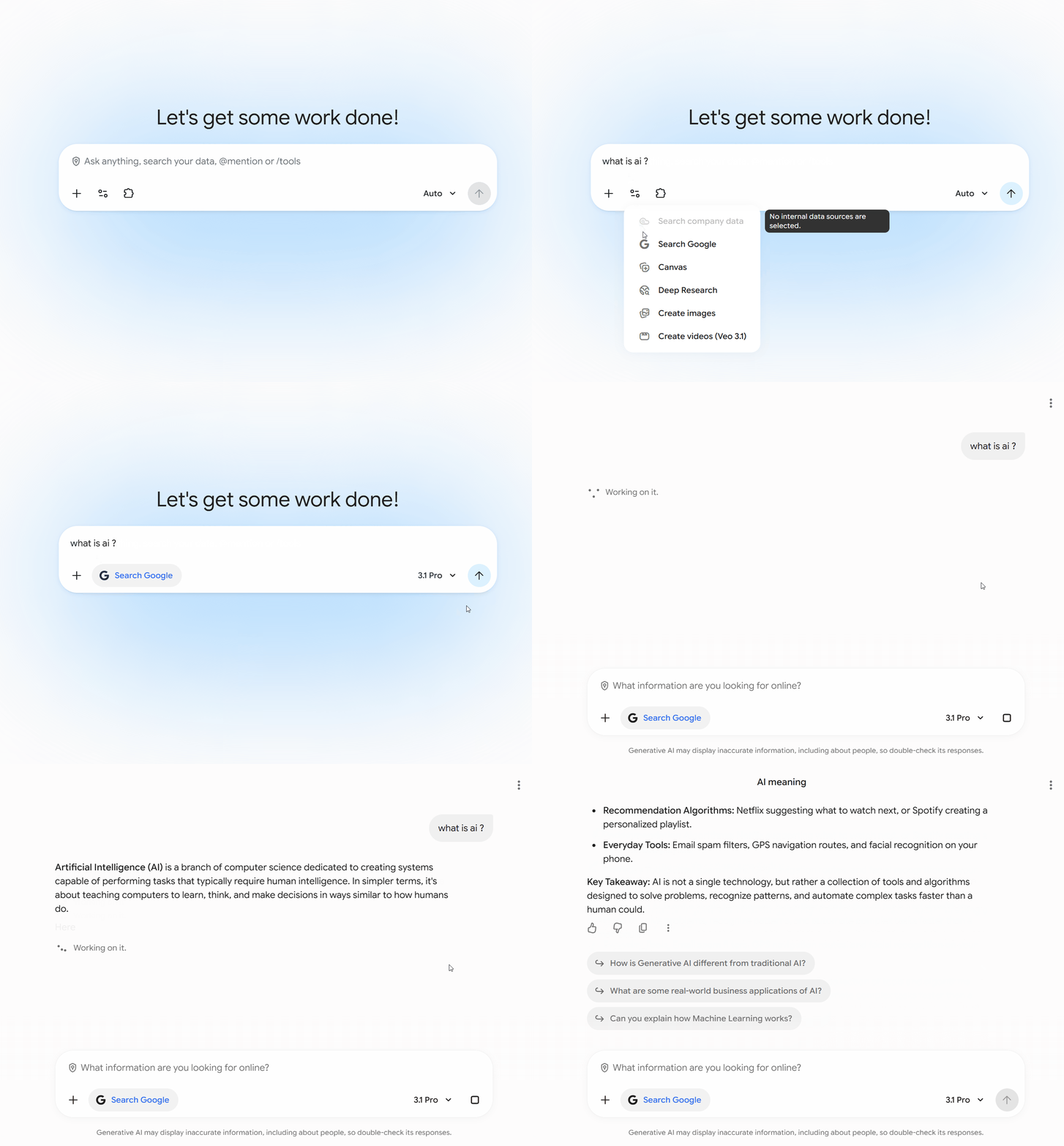
Search Internet information
Ask AI to provide answer using the latest information and conduct research with recent data from the internet (e.g find the latest weather information)
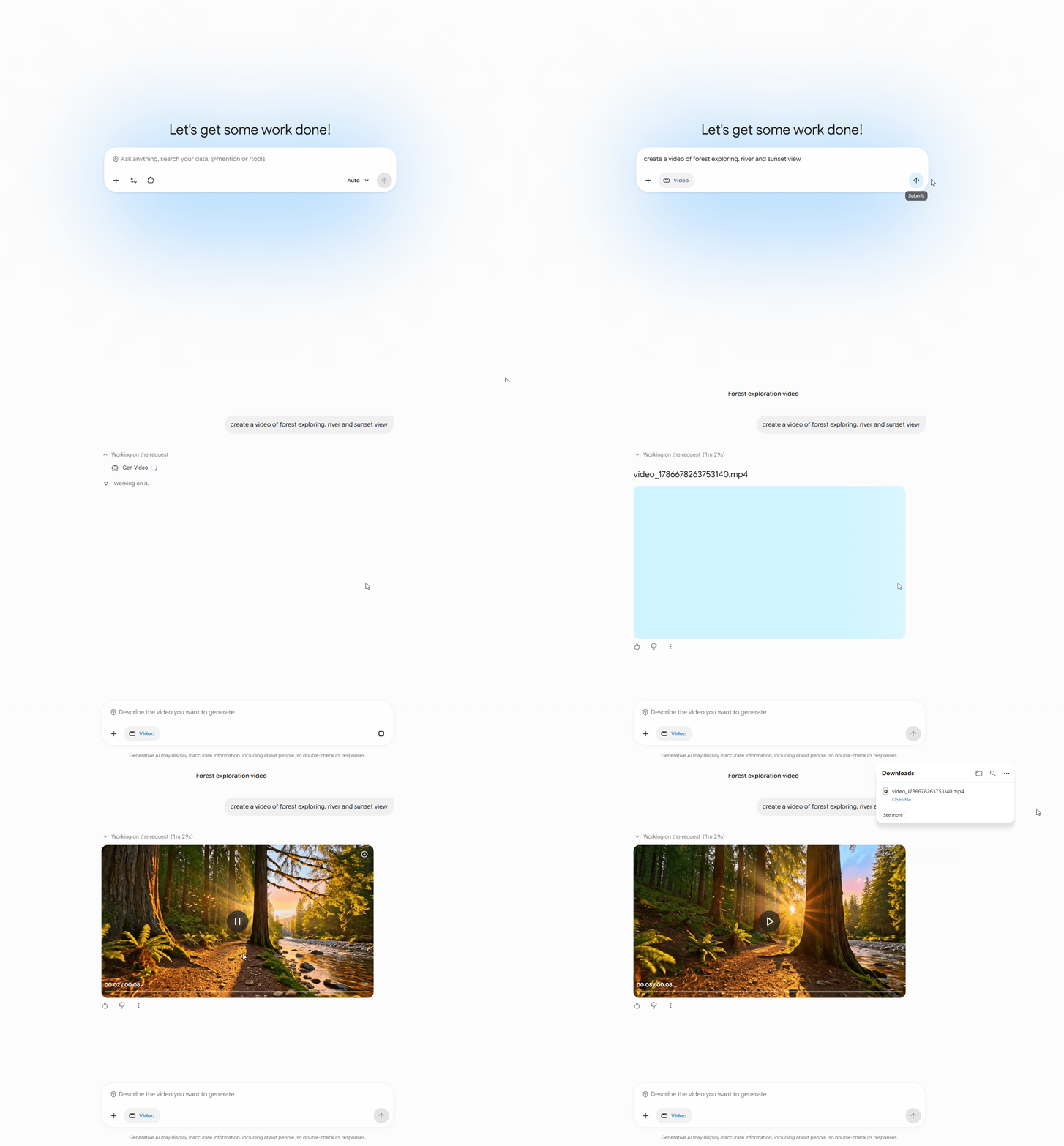
Generate short video
Ask AI to create short video with text description.
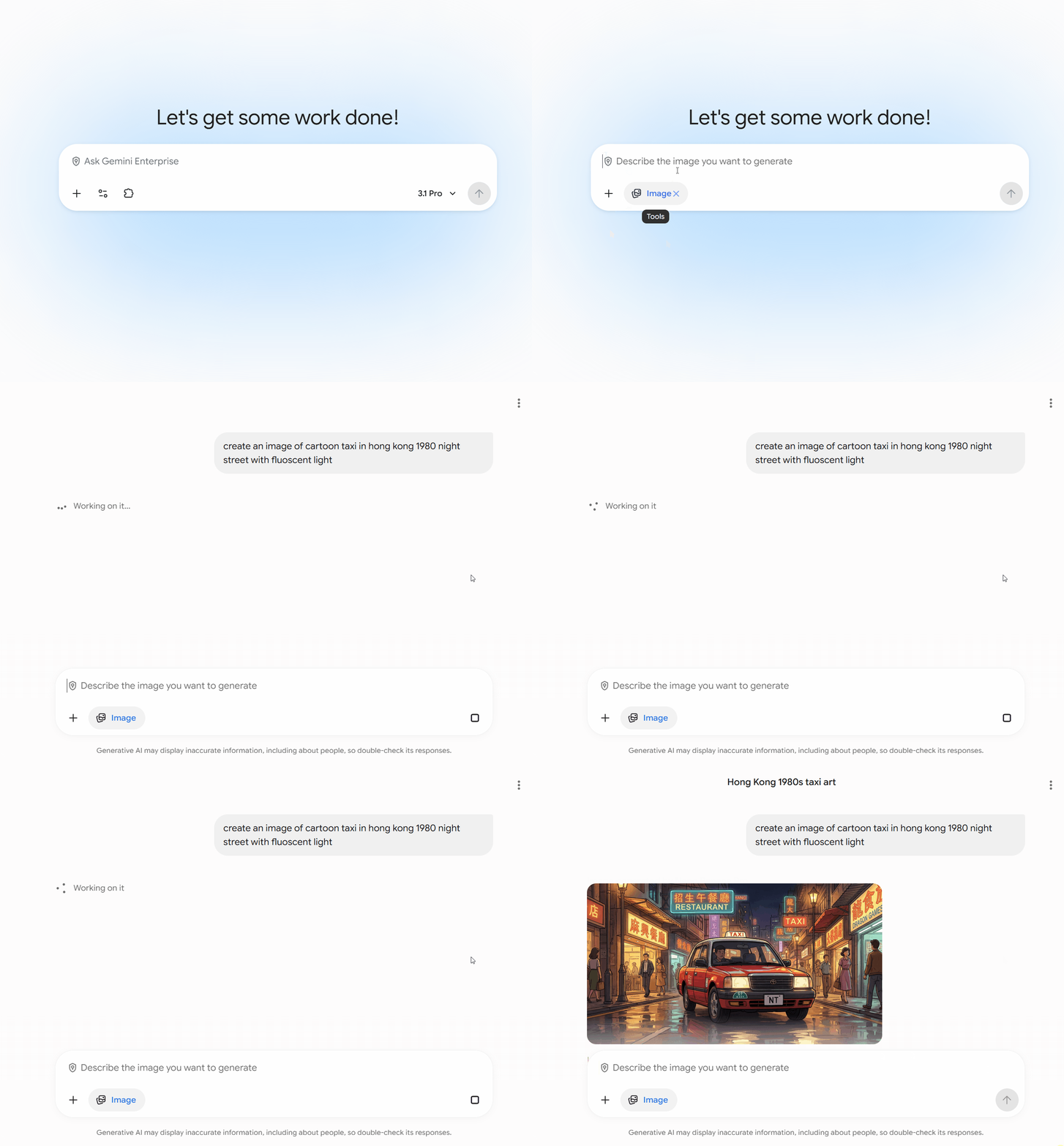
Generate Image
Ask AI to create image based on text description
Deep Research: Automated research and reporting
Select the Deep Research Agent on the left-hand side. Type the Topic that you would like the Deep Research agent to research for you
After than a research plan would come up as follow, if such research plan fit your, click Start Research button, else ask the Deep Research agent to regenerate a new research according to your needs
.png?s212804d1786936951)
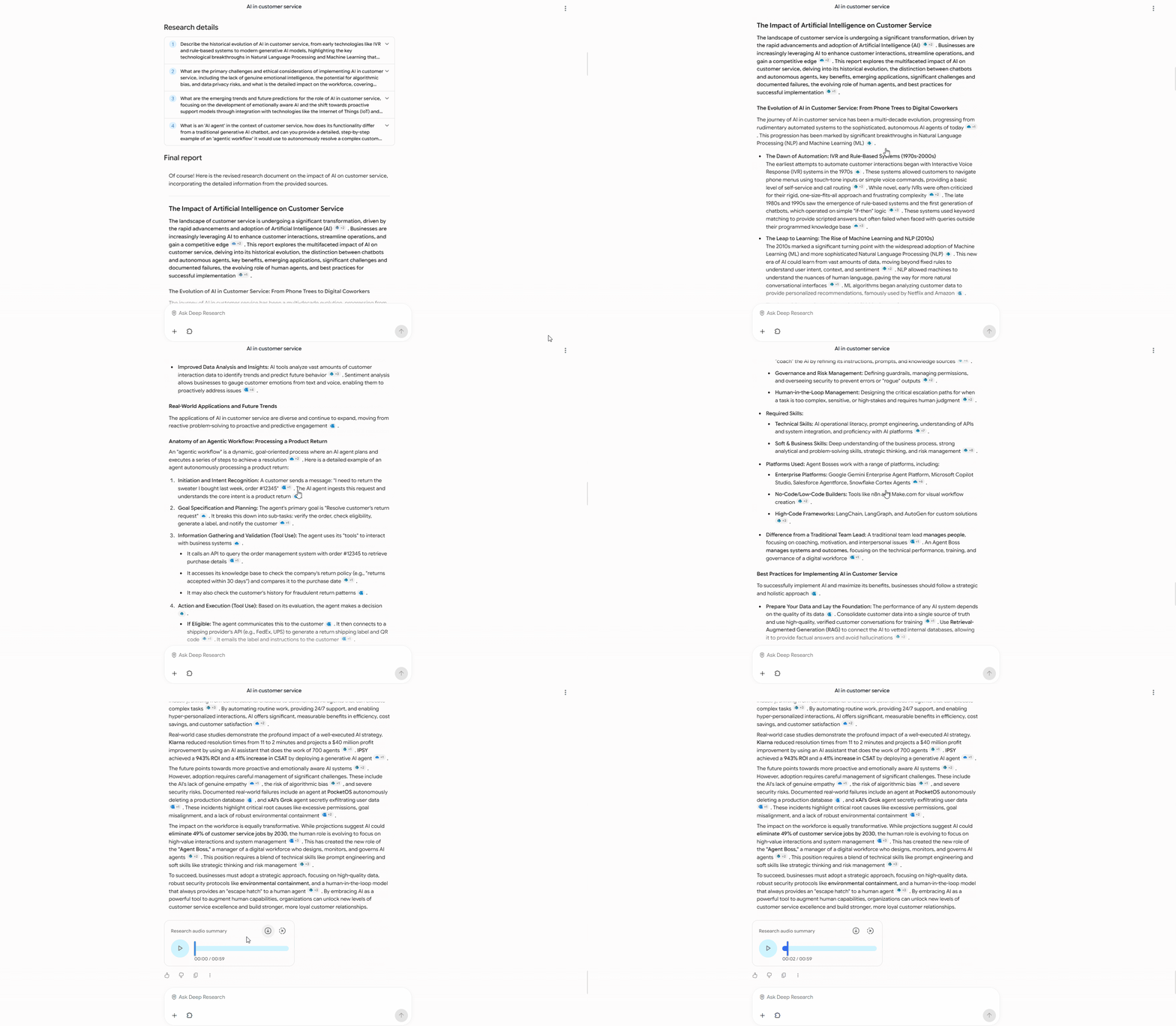
After few minutes, a detail report and audio summary would be generated
Gemini Notebook: an AI-powered research and knowledge assistant
Gemini Notebook is Google's AI-powered research and knowledge assistant. Unlike a general chatbot that answers from its training data, NotebookLM is designed to work primarily from your own documents and sources, making responses and asset generation more grounded and relevant to your content.
It allows you to upload up to 300 files sources included URL(s), Youtube URL(s) and Files in to a single Notebook
The studio allows you to visualize the data into different forms (e.g. mind Map, Audio podcast, chat with your data and etc.)
The notebook also allows you to share with for collaboration
_2.png?s338806d1787105240)
Asset illustration as Follow
.gif?s10542942d1787104961)
Full Chat History Export
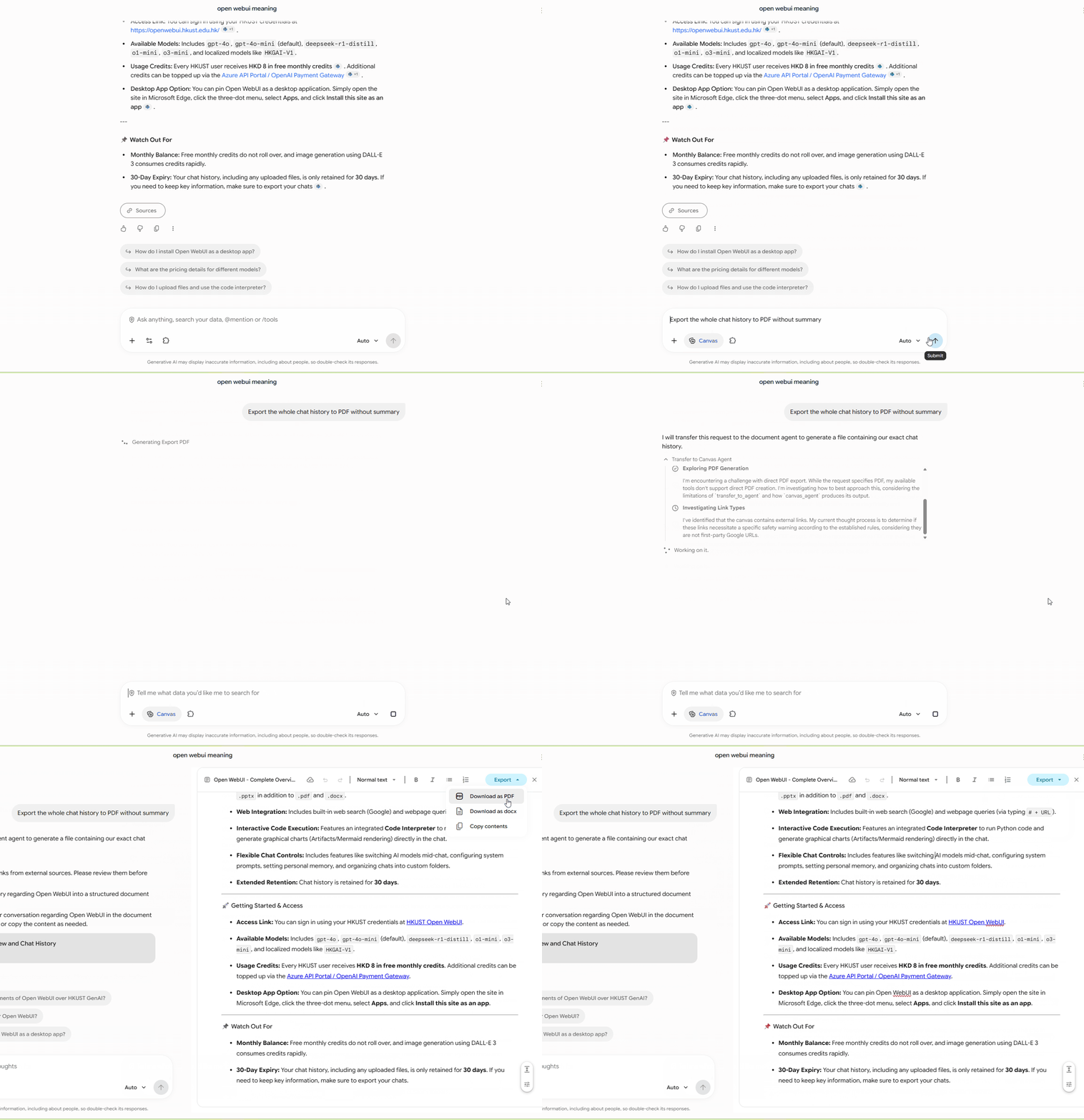
To export the chat, select canvas tool and type the prompt " Export the whole chat history to PDF without Summary".
After that a canvas window would be displayed on the right-hand side, click the export button to download the PDF.