
Viewing PDF Files Protected by Azure Information Protection (AIP)
To view PDF files protected by Azure Information Protection (AIP), you will need to install and use the following free software (i.e. doesn’t require a license).
Installation Instructions:
Follow one of the links below to install the required software for your computer.
- Windows
- Microsoft Edge browser - Microsoft Edge browser is bundled with Windows 11. For Windows 10, you may download and install the latest Edge browser in your computer.
- Adobe Acrobat Reader - download and install the latest Acrobat Reader to read AIP protected PDF files.
- AIP client - download
https://www.microsoft.com/en-us/download/details.aspx?id=53018
(select AzInfoProtection_UL.exe to download and install)
- macOS
- Adobe Acrobat Reader - download and install the latest Acrobat Reader to read AIP protected PDF files.
- iOS (mobile)
- Azure Information Protection app
https://apps.apple.com/us/app/microsoft-rights-management/id689516635
- Azure Information Protection app
- Android (mobile)
- Azure Information Protection app
https://play.google.com/store/apps/details?id=com.microsoft.ipviewer
- Azure Information Protection app
How to open the protected PDF files
- Windows - AIP Client
- Install the AIP client from the link in the previous section.
- Open Azure Information Protection (AIP) viewer
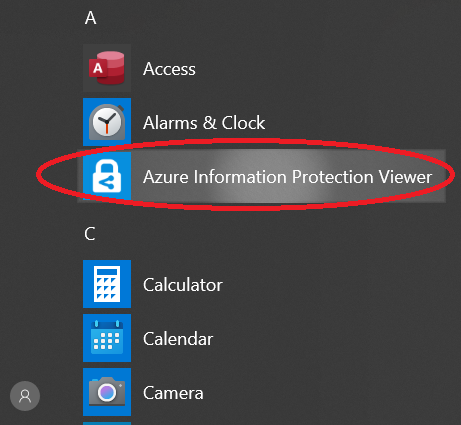
- Login the apps with your O365 account when prompted
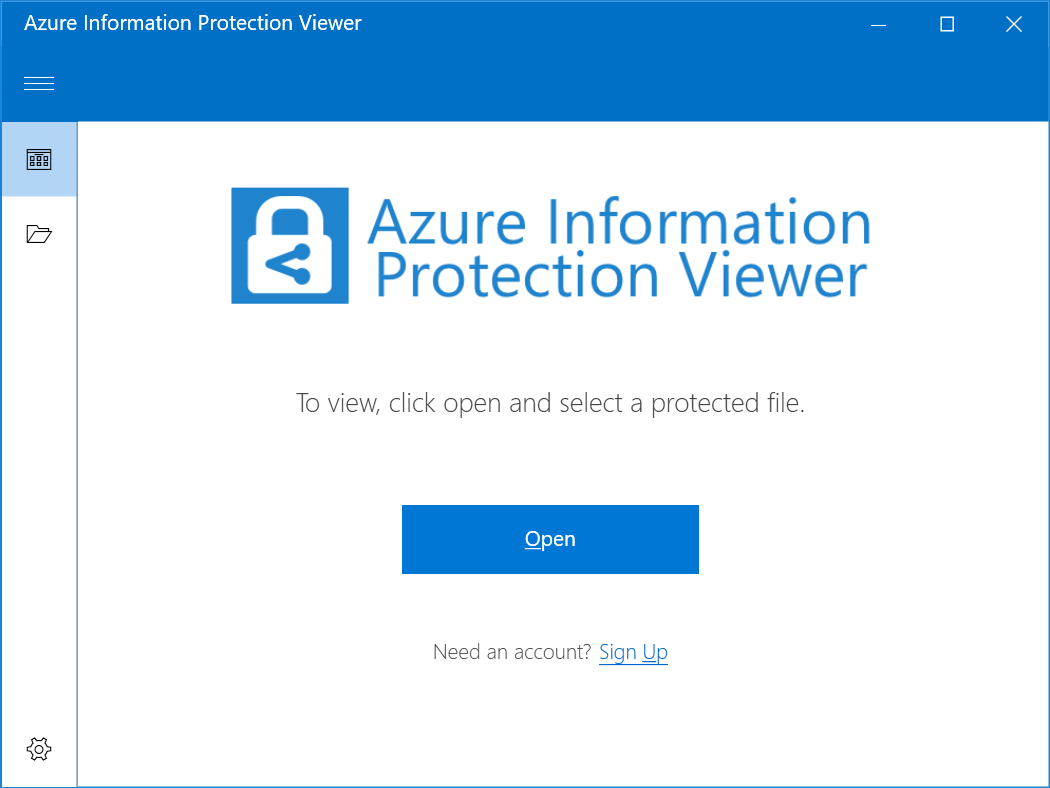
- Press the “Open” button
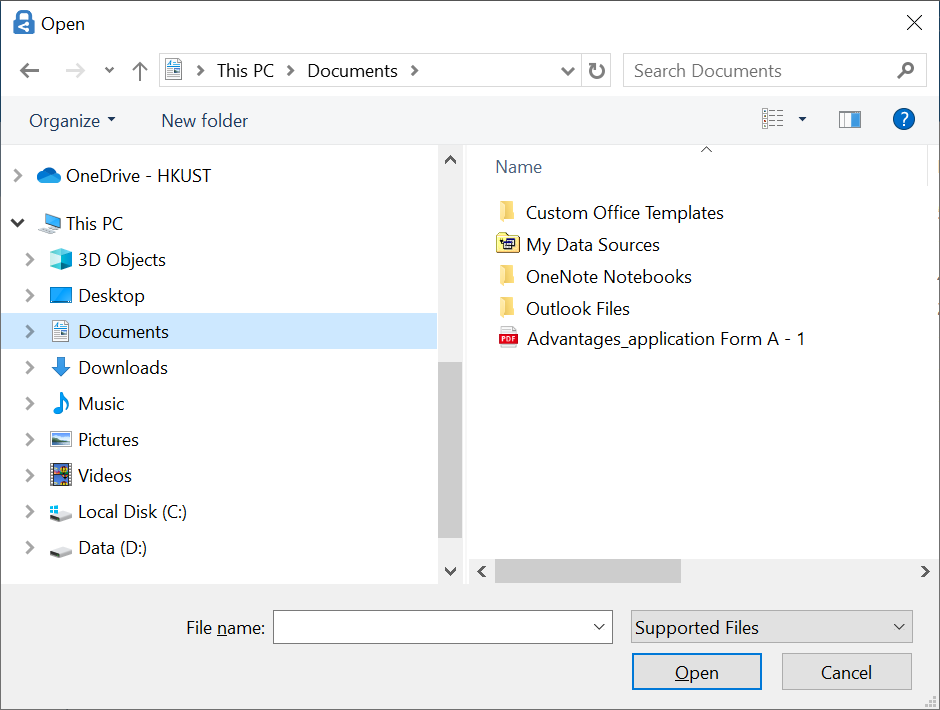
- Browse the file to open it
- macOS
- Follow the above Installation instructions to install the required software
- Right click on the protected PDF and select Open with application Acrobat Reader DC
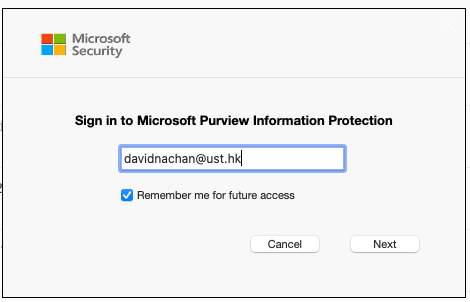
- Login the apps with your O365 account when prompted
- iOS (mobile)
- Install AIP Viewer
- When you open a protected email or any protected file, you will be prompted to sign in
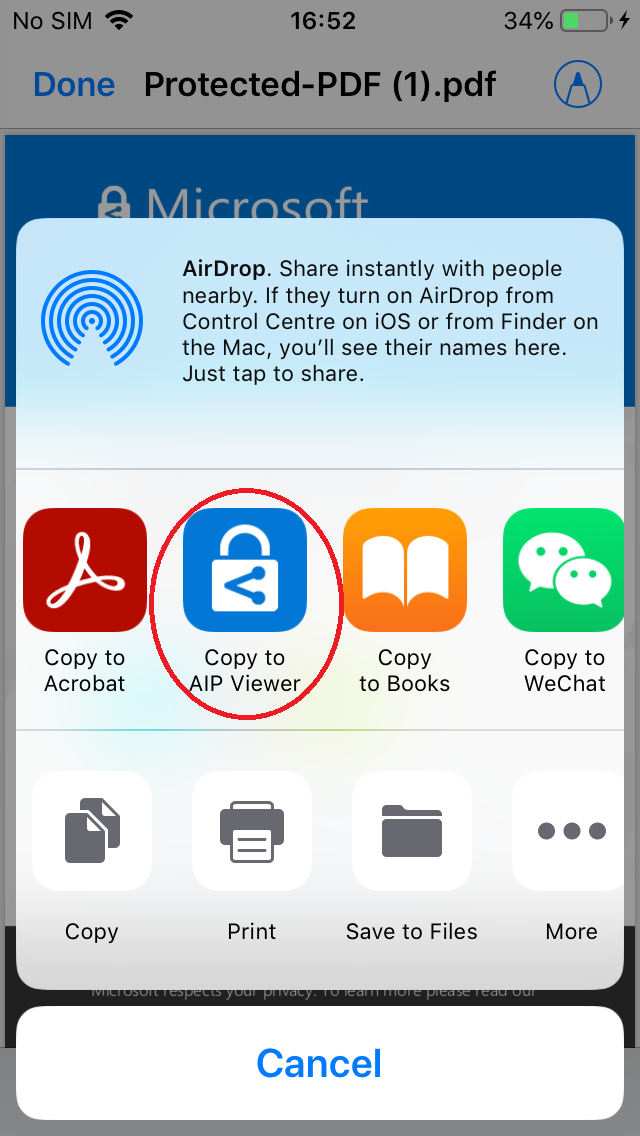
- Click on the protected PDF, use the following icon (navigation action) to send it to the AIP Viewer in iOS:
 (Copy to AIP Viewer)
- Click Accept ( if you are new to use AIP Viewer)
- Sign in with your O365 account and you can view the protected PDF
- Android (mobile)
- Install AIP Viewer and login the apps with your O365 account when prompted.
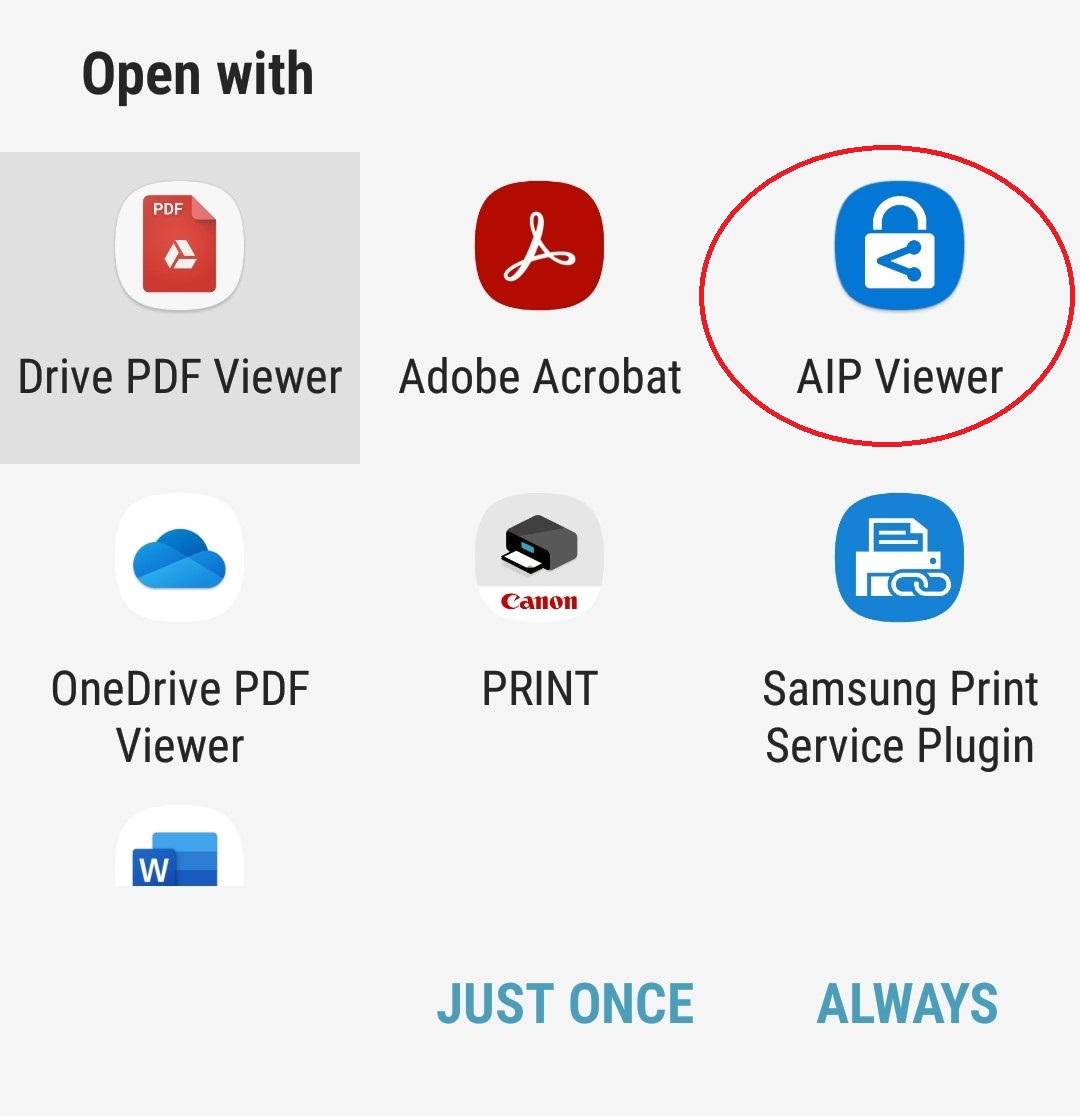
- Open the protected PDF and select Open with AIP Viewer from the list (either JUST ONCE or ALWAYS depending on your need)
- In case there is no prompt for which PDF application, please install the Acrobat Reader app from the Play Store
- Repeat step 1 and open the protected PDF with AIP Viewer