
Passwordless authentication registration
This page is designed to guide you through the process of setting up passwordless authentication. Our goal is to enhance your security while making your login experience seamless and convenient.
Getting Started
There are 3 steps and takes around 15mintues.
1. Set up the Microsoft Authenticator app on your mobile phone and make it your default MFA method.
2. Set up Passwordless Sign-in using the Microsoft Authenticator app.
1. Set up the Microsoft Authenticator app on your mobile phone.
Part A: Microsoft Authenticator App Installation
Install the app on your mobile device by scanning the QR code below:
 |
 |
Part B: MFA Enrollment:
- First, please visit the MFA enrollment portal using a desktop or laptop browser, and click on "START THE AZURE MFA ENROLLEMRNT".

- Prompt for more information.
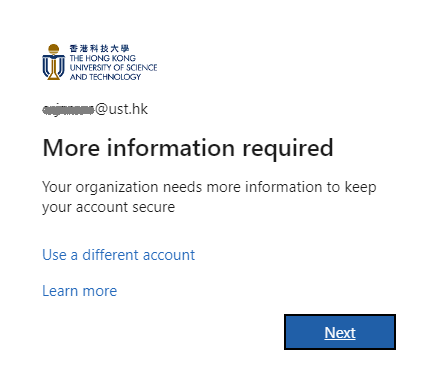
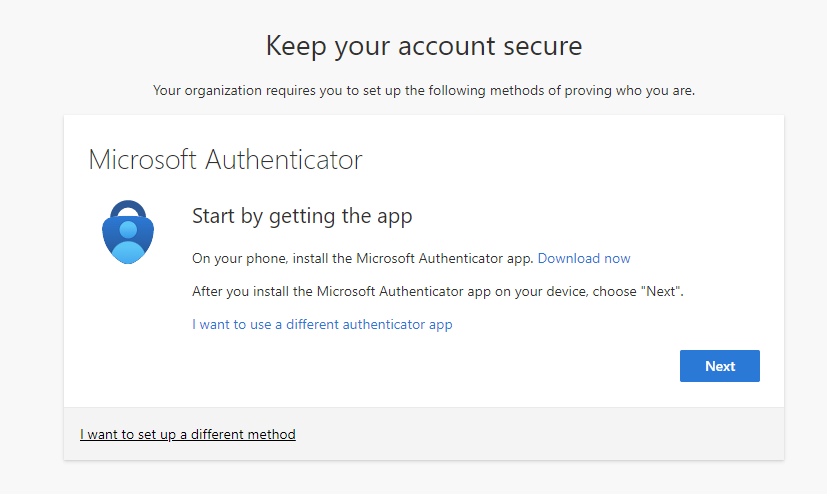
- Getting the Authenticator app if it is not installed on your phone.
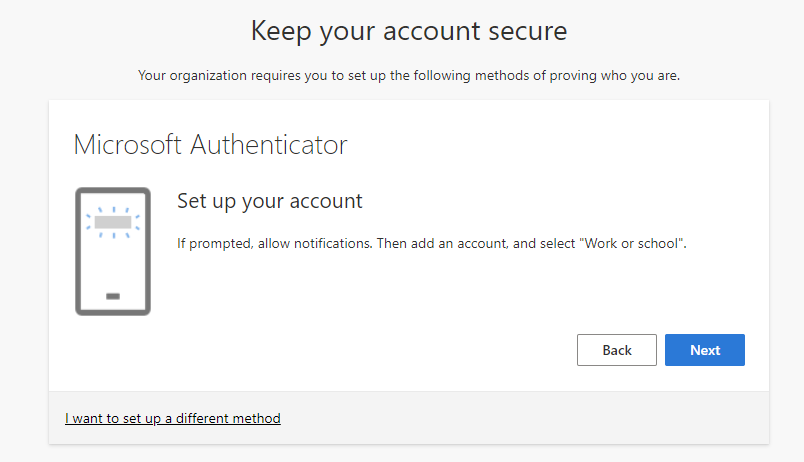
- Setup your account.
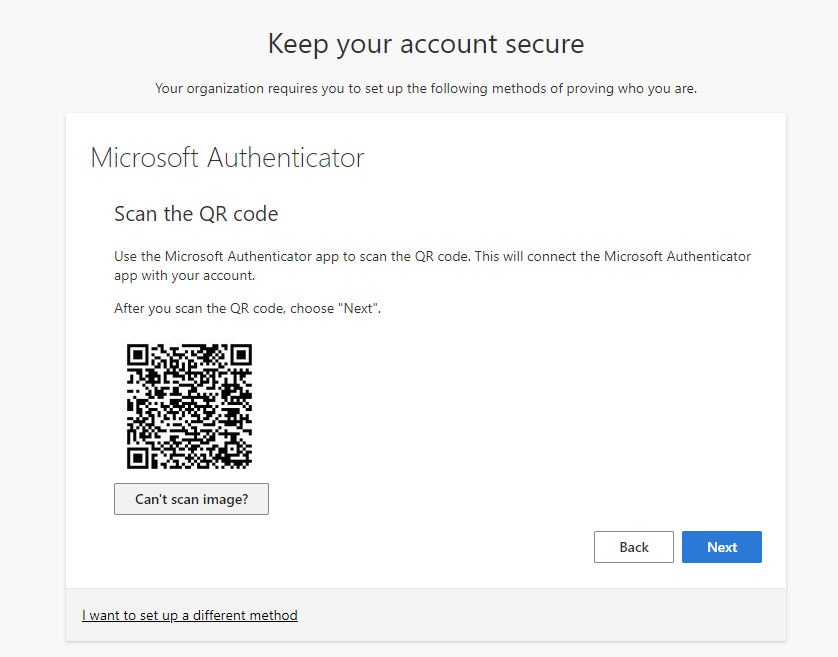
- Scan the QR code.
- Try it out.
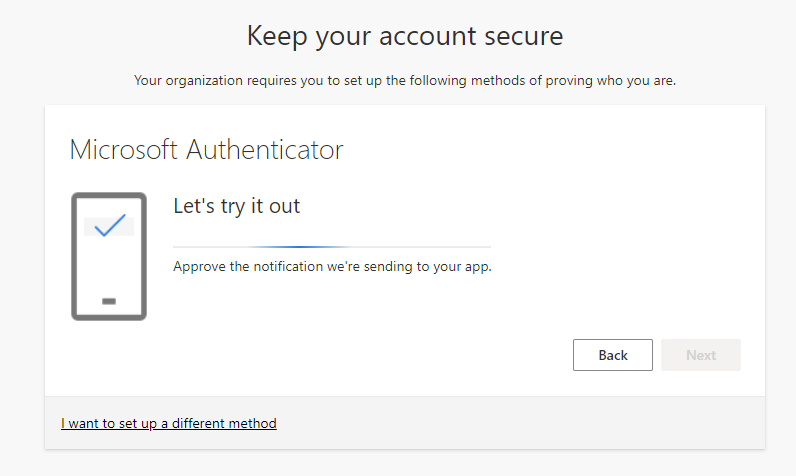
- Approve the sign in (by entering the two-digit number).
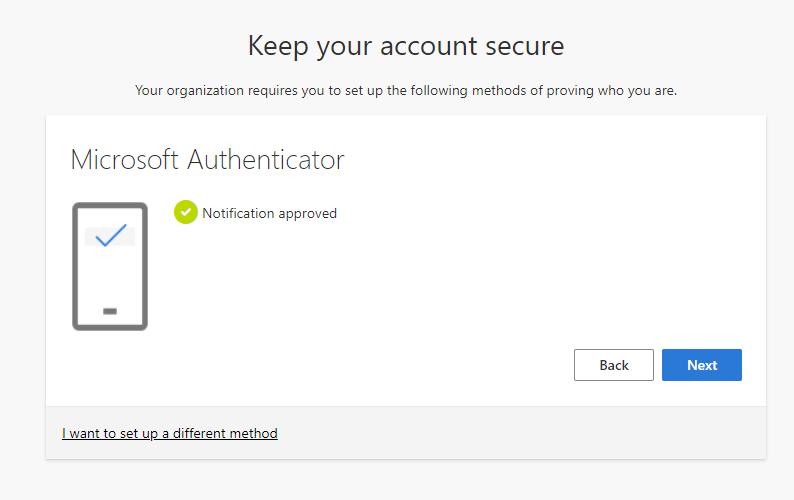
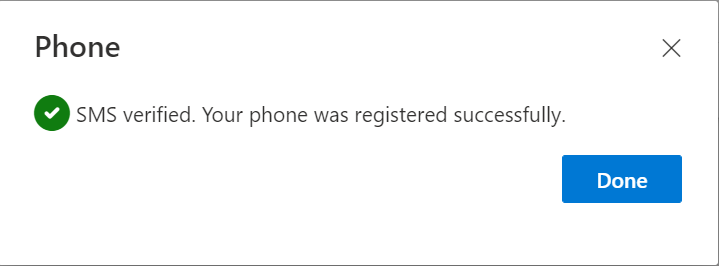
- Add your mobile phone by select I want to set up a different method. Verifiy your phone number by entering the SMS received.
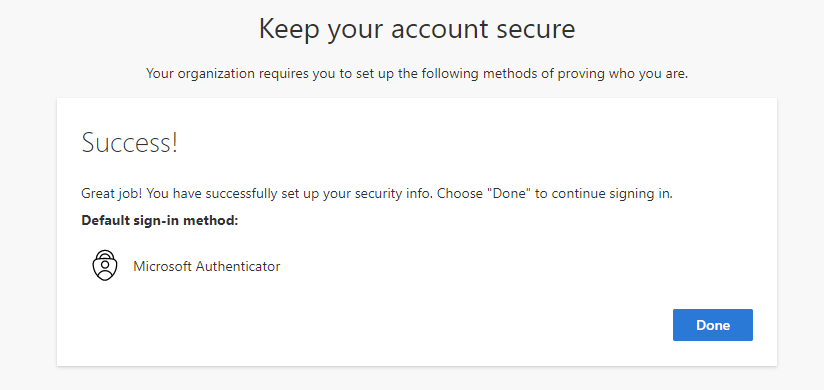
- Click "Done", Setup completed, Microsoft Authenticator as the default sign-in method.
- The webpage will redirect to the screenshot below, confirming that you have successfully switched from Duo to Microsoft Authenticator. If you cannot reach this page, please refresh the page and re-enter "START THE AZURE MFA ENROLLEMRNT" or Click Here.

2. Set up Passwordless Sign-in using the Microsoft Authenticator app.
- Open "Microsoft Authenticator" app.
- Select your "Work or school account (e.g. xxxx@ust.hk)".
- Select "Set up Passwordless sign-in requests" and enter your account password.
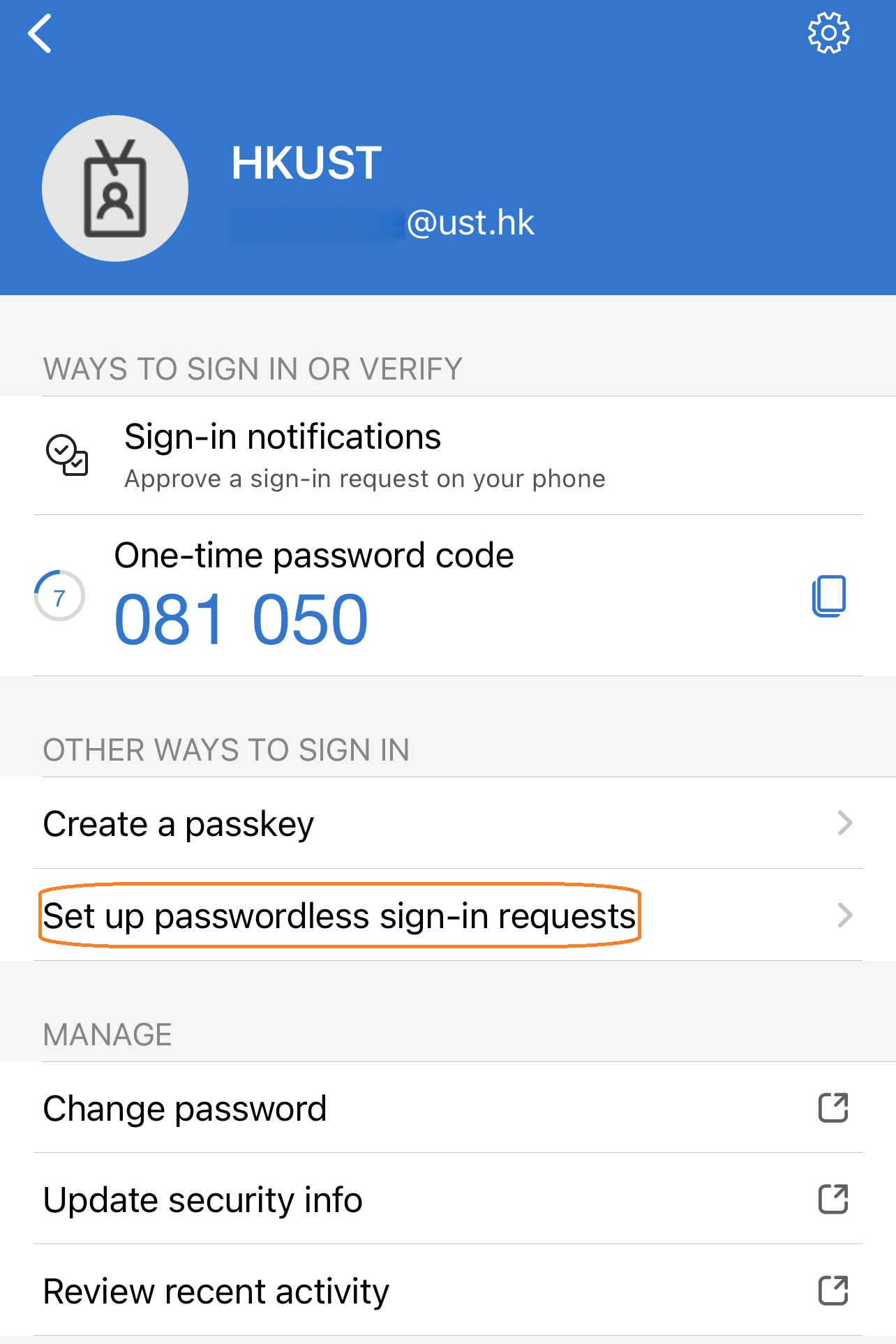
- Click "Continue" and unlock your device.
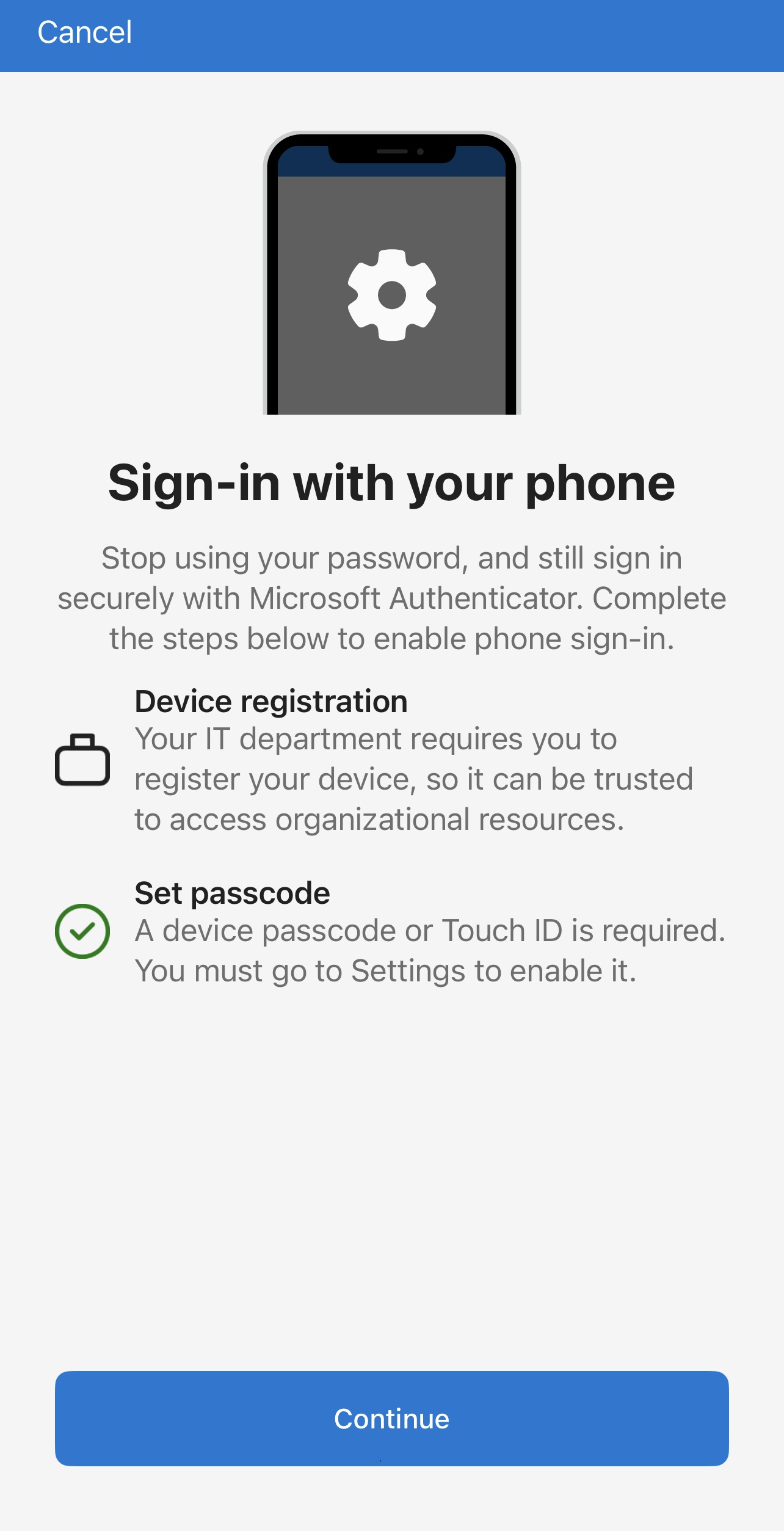
- Follow the instruction to enter the passcode.
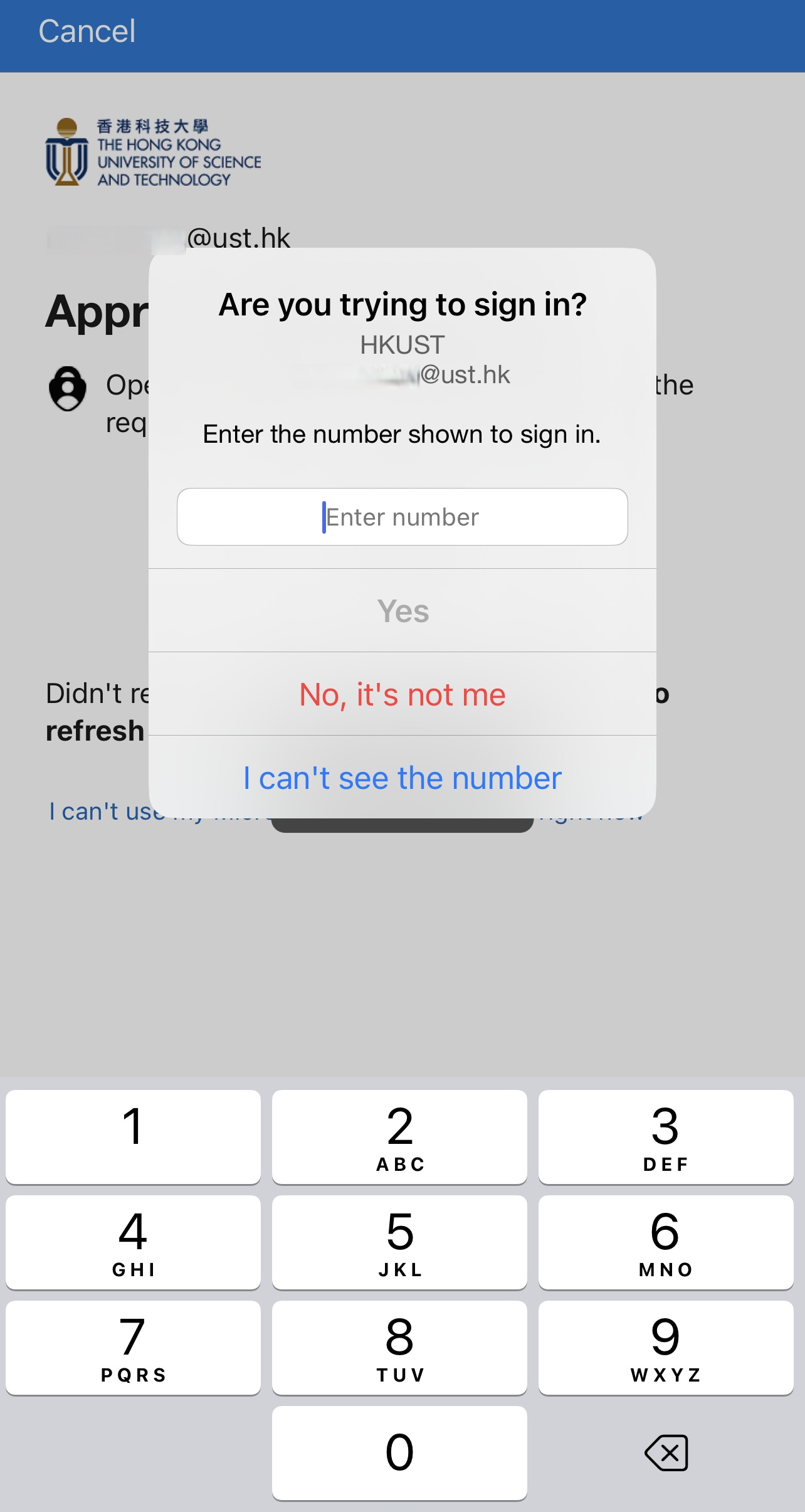
- Approve the sign-in and click "Register".
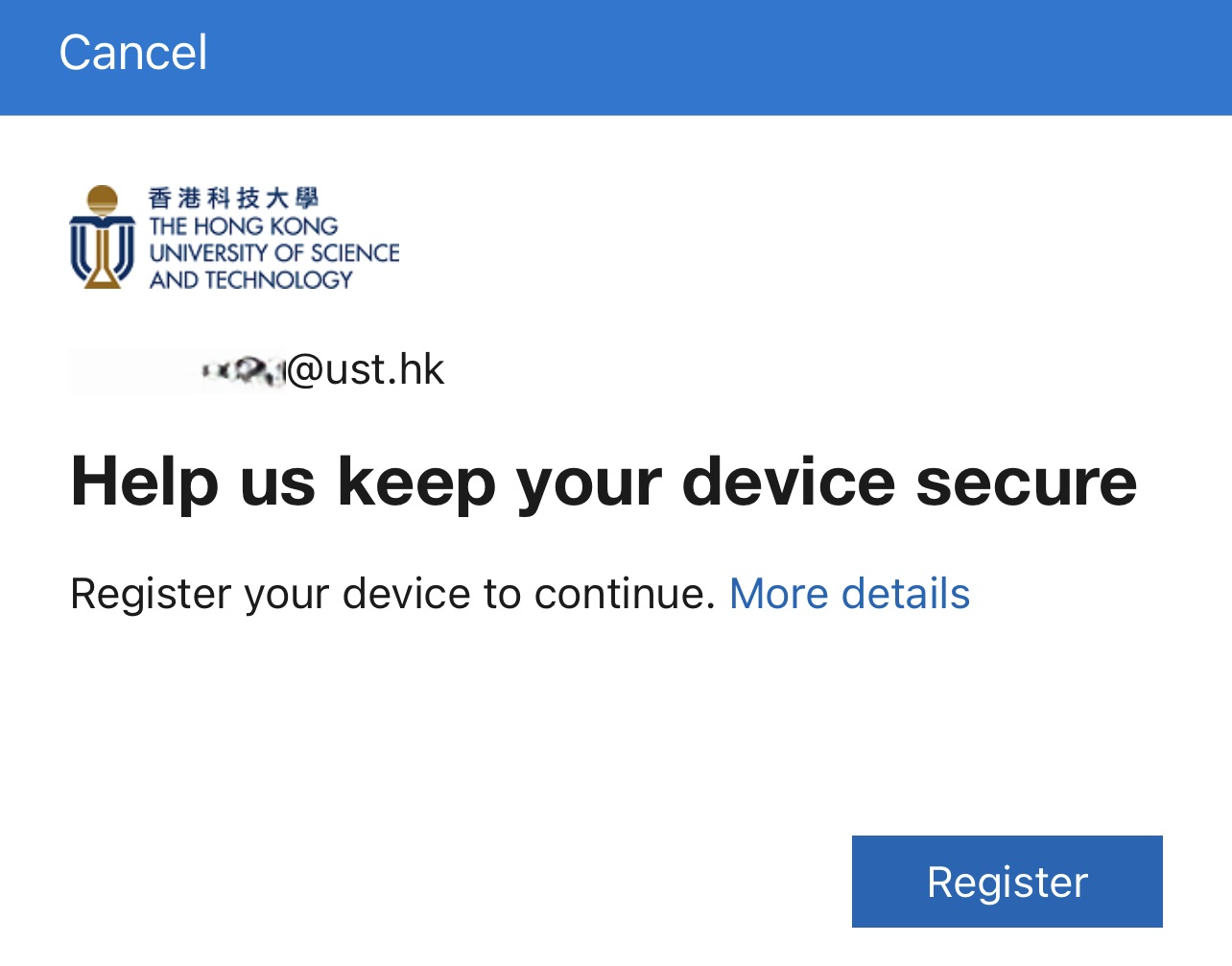
- Passwordless enabled.
3. Enable Windows Hello for Business to enjoy a more secure and convenient login experience on your office computer.
After you complete the step to setup MFA and Passwordless authentication, ITSO will enable the Windows Hello for Business on your office computer on next week.
- You will see below pop-up window when you login your computer.

- Follow the instructions and enter the two-digit number via the Microsoft Authenticator app.

- Setup the PIN and Click "OK". (Note: The PIN at least six numbers by default in numeric characters.)

- All set! Please click "OK". The PIN will be available for use after 30 minutes.
