HKUST SuperPOD - A TensorFlow Example
Example TensorFlow:
1. In the first terminal
- Run an interactive job in gpu node using srun. Supply your project group name and the partition (e.g. normal ) going to use.
srun --partition normal --account=<yourgroupname> --gres=gpu:2 --pty $SHELL
netid@dgx-26:~$
- Note the DGX node name dgx-26 in the above example.
2. (Skip if not using container)Create Tensorflow image if it is not available.
apptainer pull tensorflow:23.11-tf2-py3.sif docker://nvcr.io/nvidia/tensorflow:23.11-tf2-py3
3. (Skip if not using container)Run tf image and mount your directory preferred to a mount point in container. In this example, we map our own scratch space to /scratch in container( /scratch does not need to already exist in the container)
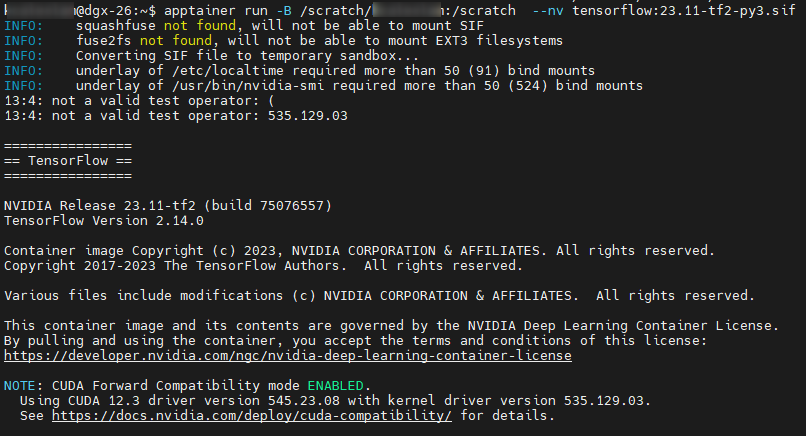
apptainer run -B /scratch/yournetid:/scratch --nv tensorflow:23.11-tf2-py3.sif
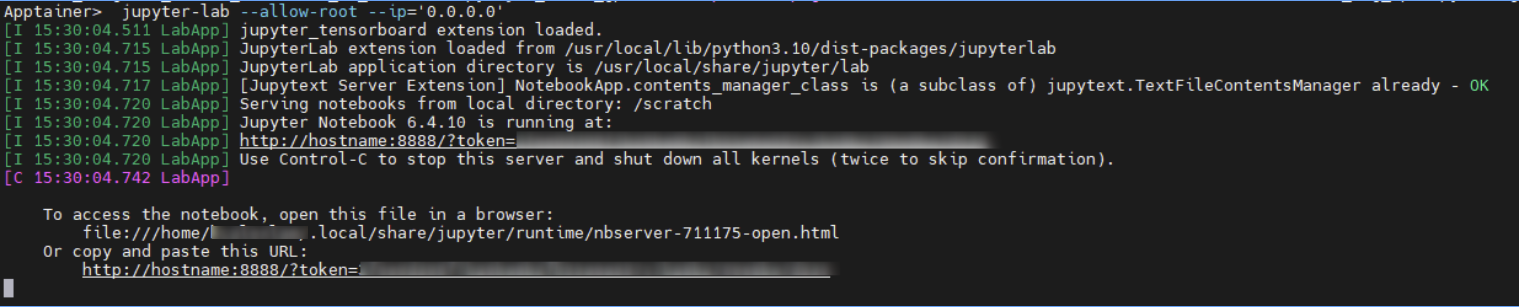
4. Type: jupyter-lab --allow-root --ip='0.0.0.0'
5. Mark the token for the second terminal
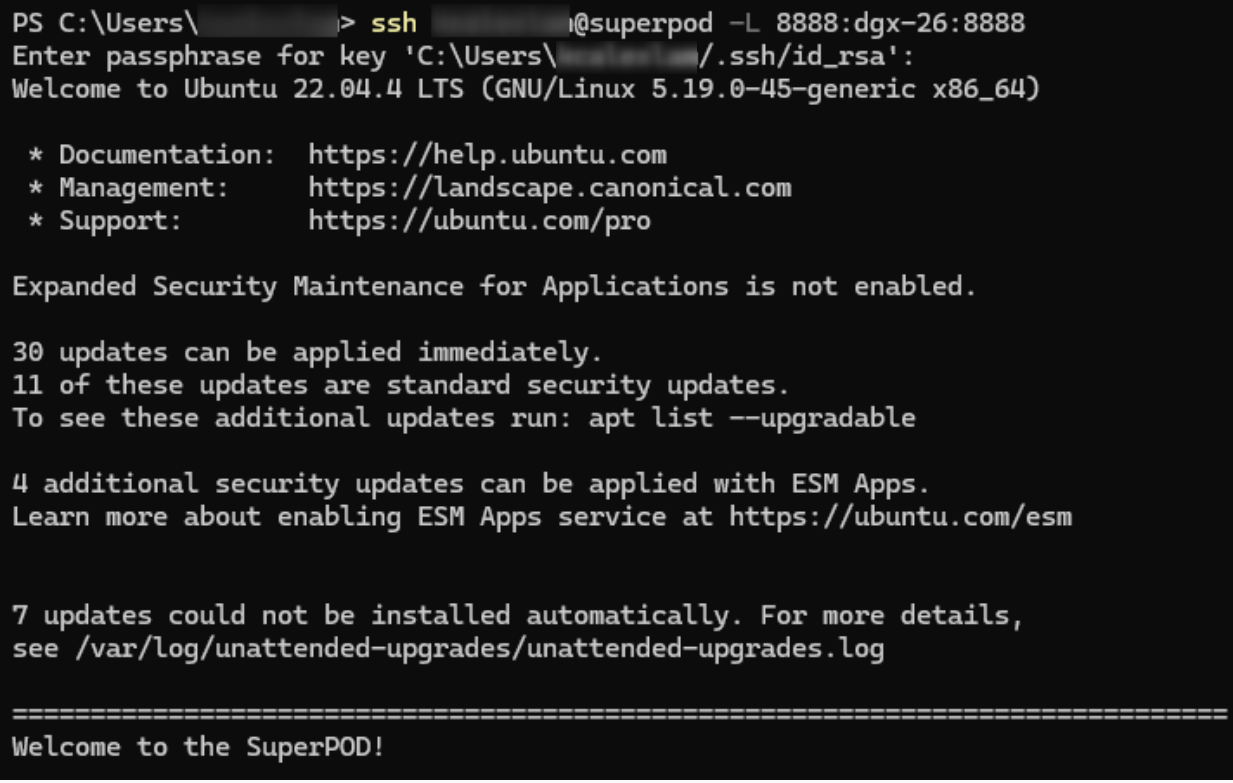
6. Open another terminal to do second login. Do port mapping between compute node and your host, replace -xx with number. For our case should be dgx-26
ssh yournetid@superpod -L 8888:dgx-xx:8888
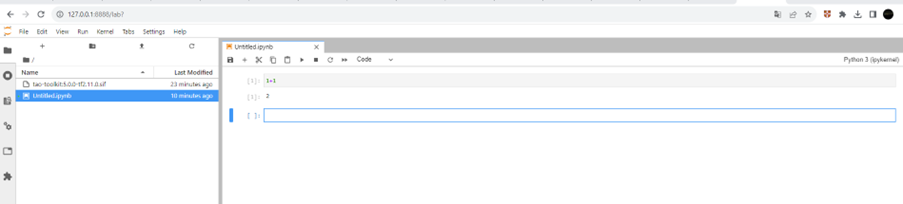
7. Open the browser in your local workstation and type “http://127.0.0.1:8888/?token=????
8. Done.