
Virtual Barn User Guide
Install the Sangfor VDI Client
- To connect to Virtual Barn, install the Sangfor VDI Client on your device.
How to Connect to a Virtual Desktop
Windows / macOS
-
Open the Virtual Barn
- Launch a web browser. On Windows, use either Edge or Chrome. On macOS, use Safari. Google Chrome is not compatible.
- Go to https://workspace.ust.hk
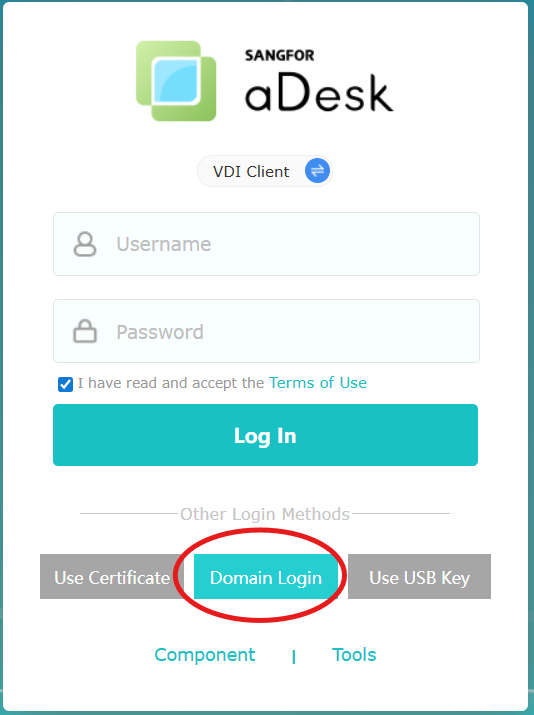
- Click Domain Login
-
Log In
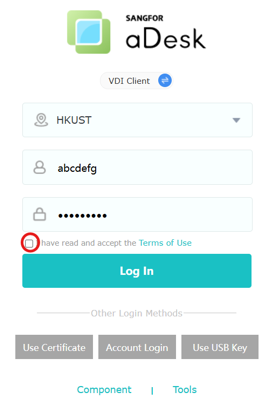
- Enter your HKUST Account and password. Do NOT append the account name with the "@connect.ust.hk" domain suffix!
- Tick "I have read and accept the Terms of Use".
-
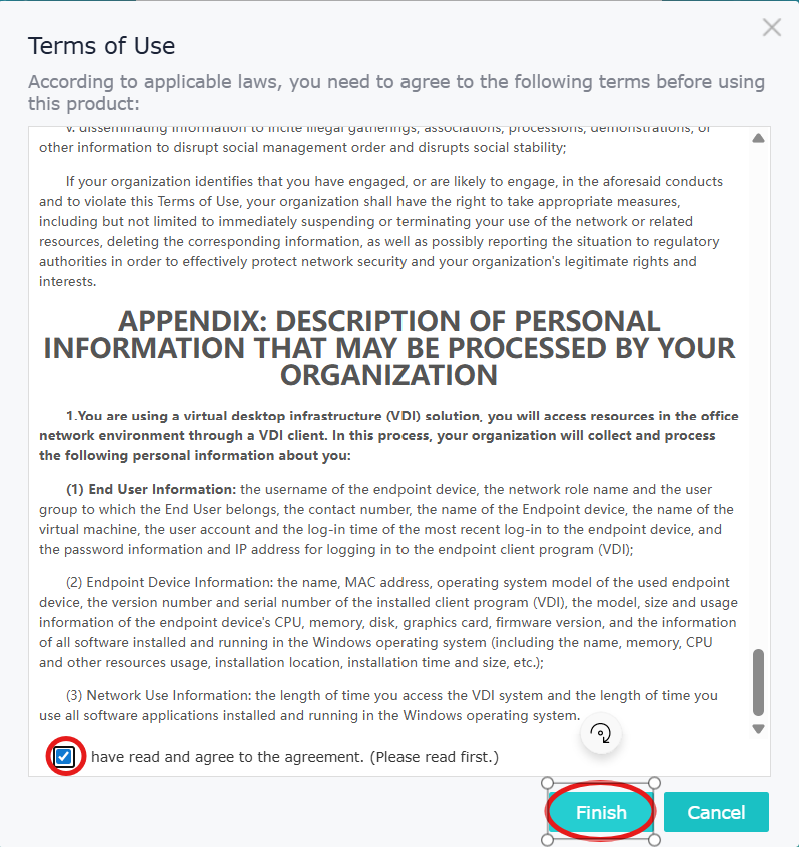
Complete the Agreement (first-time users only)
- Scroll down and tick "I have read and agree to the agreement",
- Click Finish, then click Login.
-
Install Sangfor VDI Client (first-time users only)
- If the Sangfor VDI Client is not yet installed, you will be prompted to download and install it.
- Follow the installation guidelines provided here.
-
Select a Desktop Pool
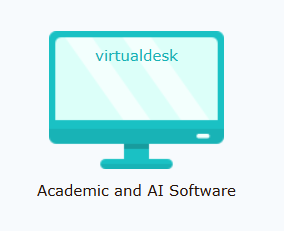
- Click the desired desktop pool to connect to.
-
If only one desktop pool is available, the virtual desktop will launch automatically.
Android
- Install the Sangfor VDI Client app
- Launch the VDI Client app.
- Accept EULA and Privacy Policy.
- Allow requested permission when prompted.
- Enter workspace.ust.hk into the URL box and tap Connect.
- Enter your HKUST Account with suffix "@ust.hk", e.g. xxxx@ust.hk, into the username box.
- Enter password.
- Tick the "I have read and accept the EULA | Privacy Policy" check box.
- Tap Log In.
- Tap the desired desktop pool to connect to. If only one desktop pool is available, the virtual desktop will launch automatically.
Virtual Desktop Software Pools
- Academic Software and AI & 3D Software have been combined.
- Refer to the Virtual Barn Software List for available applications.
Saving Files on a Virtual Desktop
Important Notes
- All Personal Drive (P:) data on Barn and Virtual Barn has been inaccessible since 24 August 2025.
- OneDrive is now available and recommended for storing and sharing files.
Data Protection Reminder
- ITSO does not provide backup for user profile data.
- Deleted files cannot be recovered.
- Always keep master copies of important files in OneDrive, Google Drive, or another secure location.
Missing Documents?
If you cannot find your documents after logging in:
- Your session may not fully powered up.
- Logoff, wait for a few minutes, and log in again.
Brown box over Desktop icons
Use USB storage devices or smartcard readers on Virtual Desktop
1. Move the mouse to the top navigation bar.
2.Click the 3-lines menu → USB Devices.
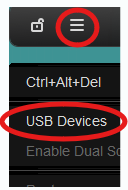
3. Select the USB device you want to connect.
Note: USB redirection is not supported on macOS or mobile clients.