
Student Card and MF-Printer Association
-
Tap your student card near the card reader.
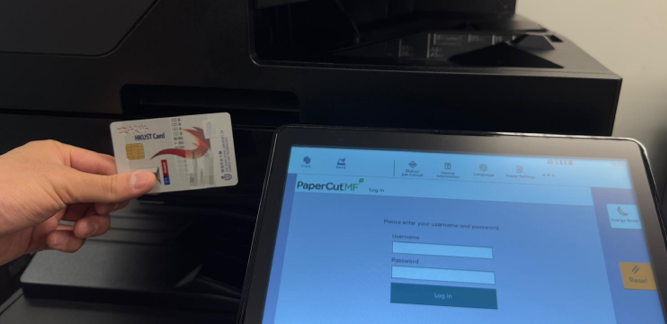
-
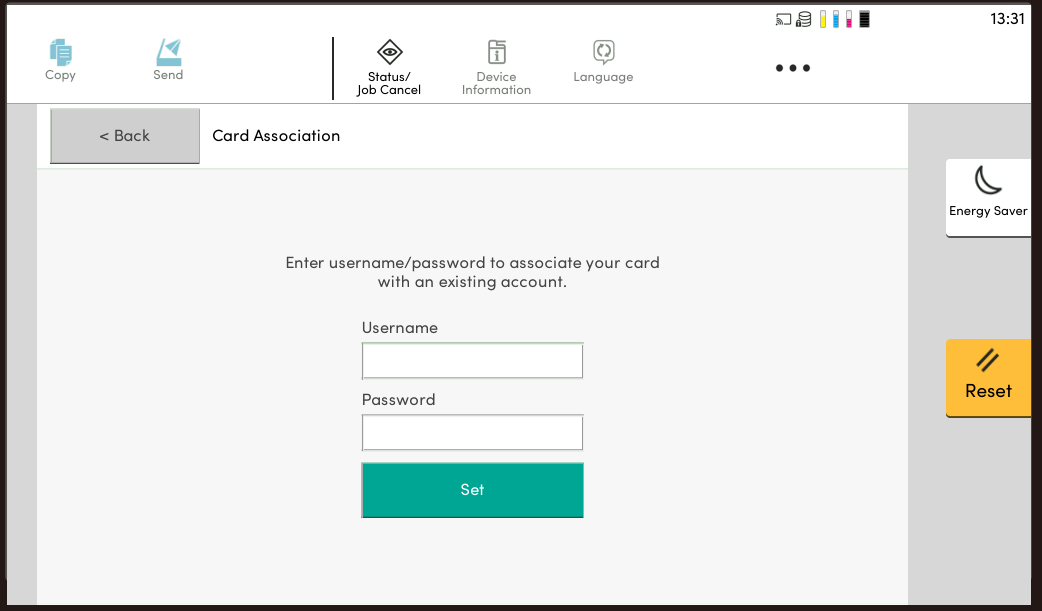
Enter your HKUST Account and Password in the username and password field, then click Set.

-
The Association has been completed.
Collect Your Print-Out
Once you send your document to MFP print queue, you can visit any multi-function printers on campus and use one of the options below to print it out.
Options A
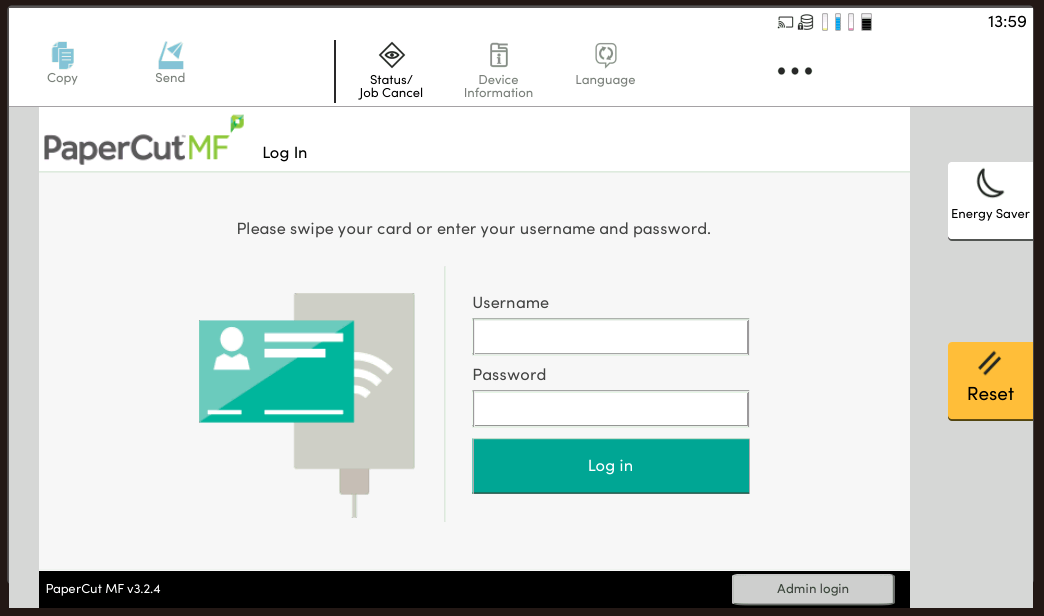
Enter your HKUST Account and Password in the usermane and password field.
Options B
Tap your student card near the card reader.
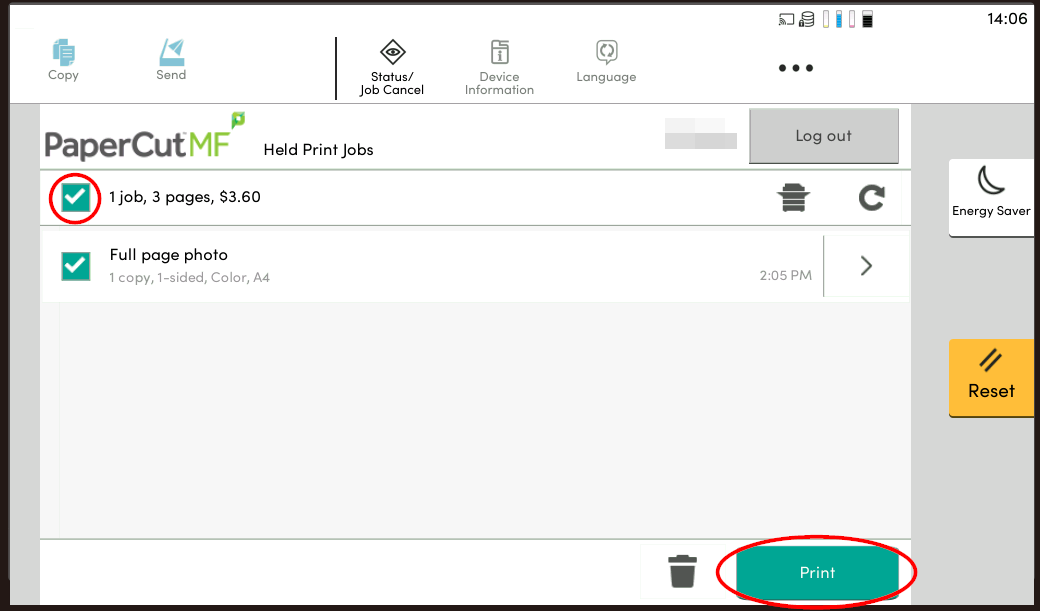
After logging into the printer, please select your print job to print and remember to logout of the printer after use.

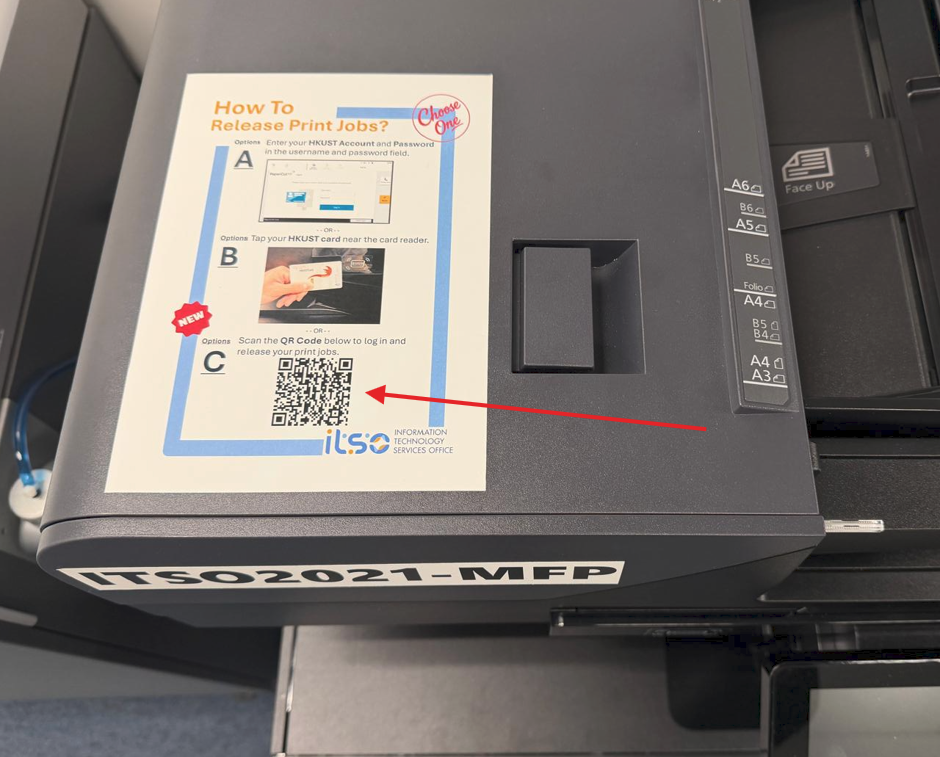
Options C
Scan the QR Code to login and release the print job on your mobile device.
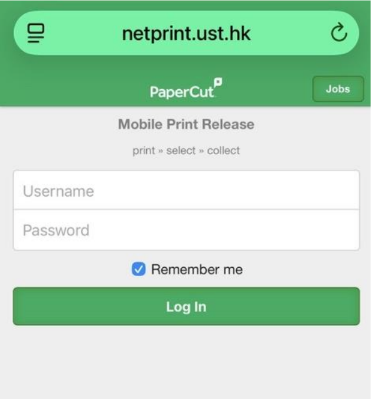
Enter you HKUST Account and password.
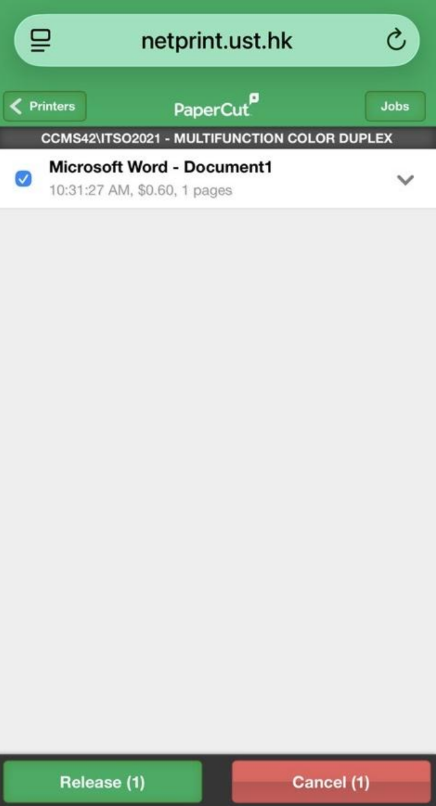
Please select and release your print job to print and remember only print when you are standing at the machine, ensuring your data remains private.
Copy
-
Tap your student card near the card reader.
-
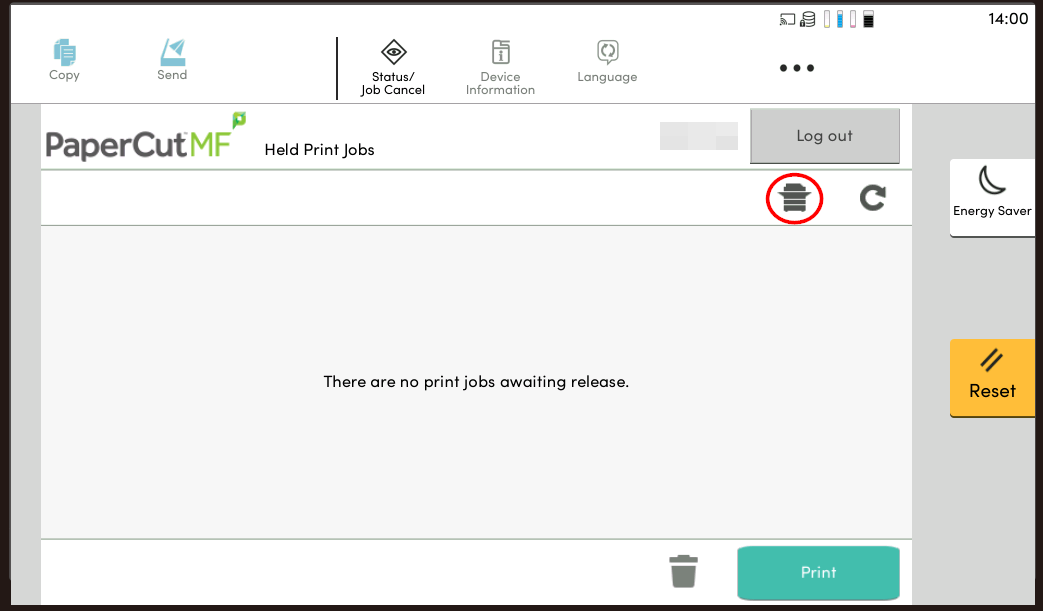
Touch the Copier icon.
-
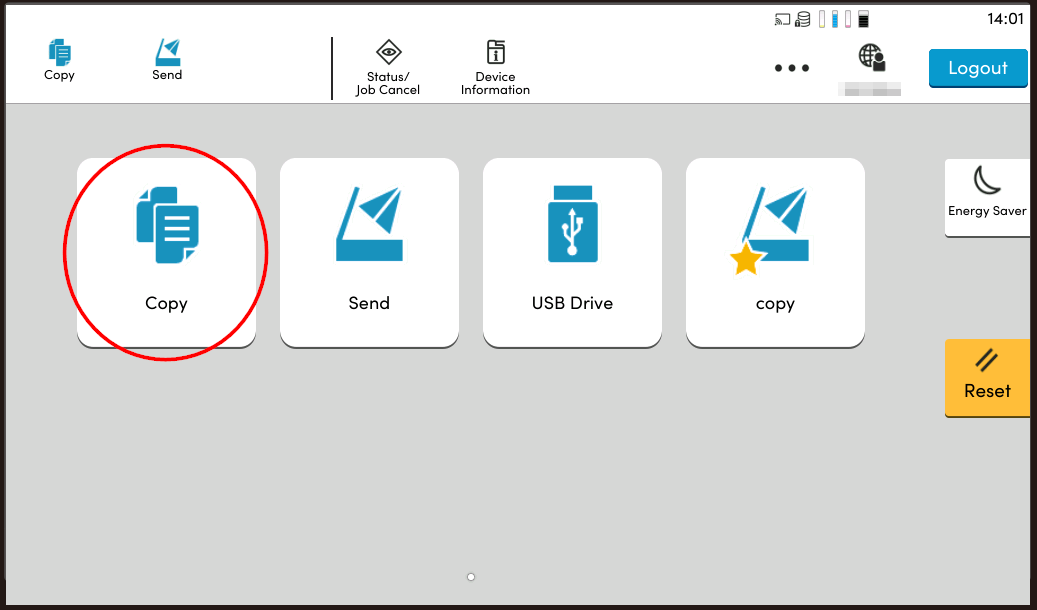
Touch the Copy icon.
-
Remember to logout of the printer after use.
Scan
-
Tap your student card near the card reader.
-
Touch the Copier icon.
-
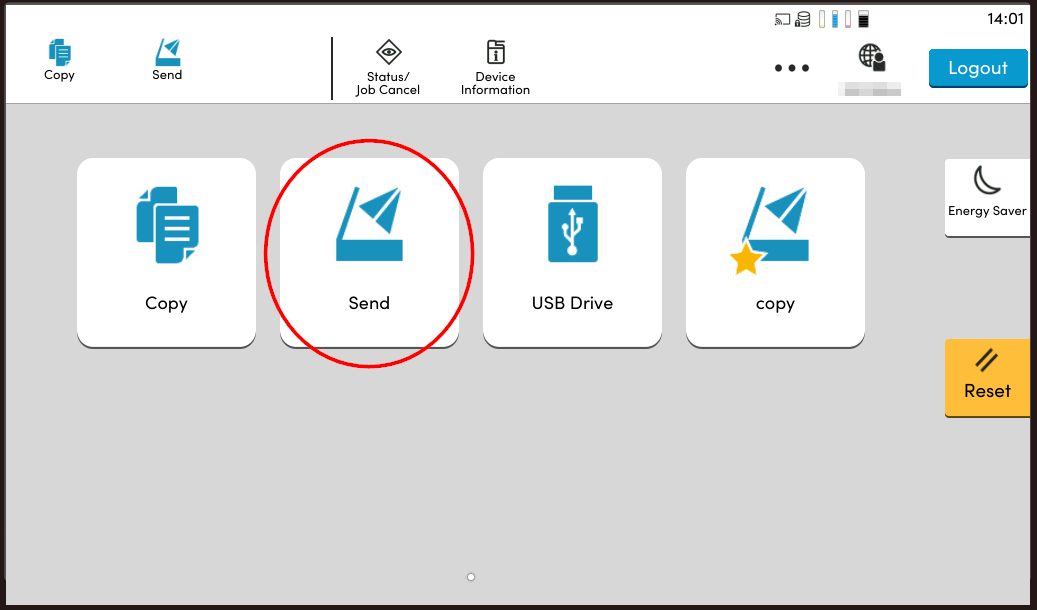
Touch the Send icon.
-
Remember to logout of the printer after use.
Print from a USB Thumb Drive
-
Tap your student card near the card reader.
-
Touch the Copier icon.
-
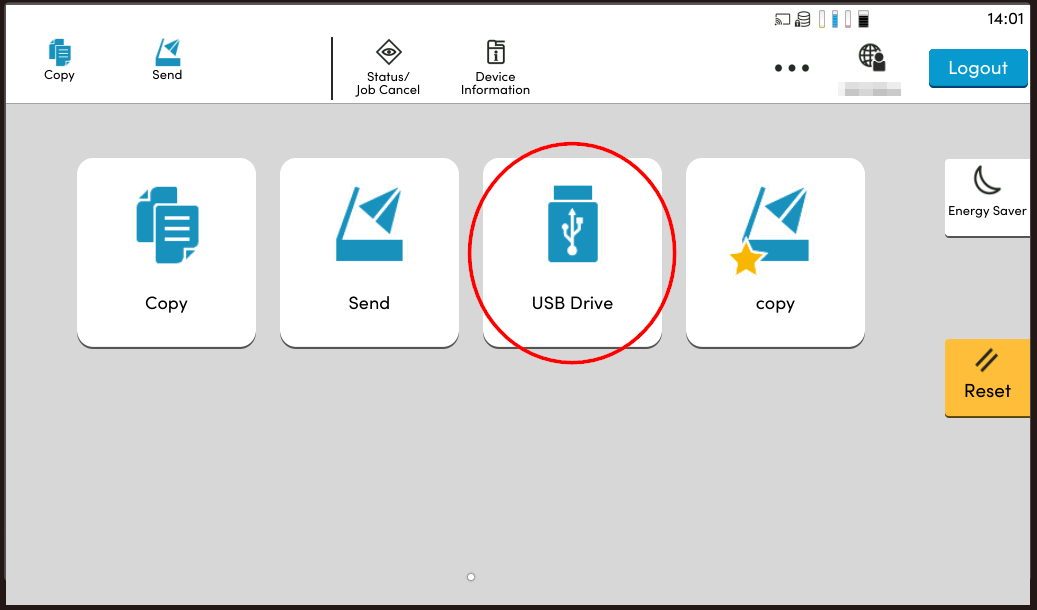
Touch the USB Drive icon.
-
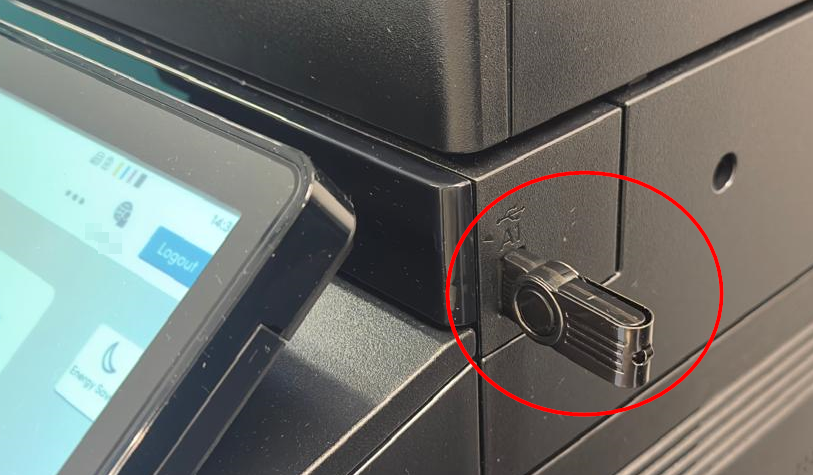
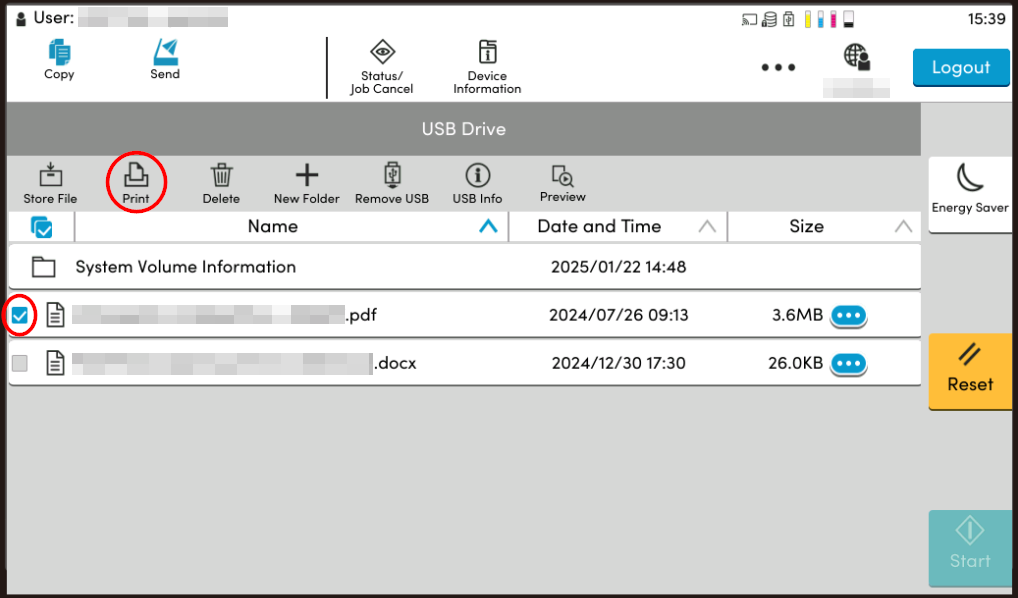
Insert your USB thumb drive on the right-hand side to display file(s).
Note: The USB supports a maximum capacity of 16GB and only the FAT32 format.
5. Select file(s) and press print.
Note: Some printers only print PDF files from a USB drive. If the file size is too large, the printing speed will slow down, it is recommended to print from computers instead of a USB drive.
6. Remember to logout of the printer after use.